
- Reduce Bounce Rate
- Control Desk
AI Optimizer: Reduced manual effort through AI-powered analysis and optimization of search results in Control Desk
Optimizing your search results is one of the most important—but also one of the most time-consuming—tasks in e-commerce. It becomes particularly challenging when search queries return results but don’t generate clicks, or when terms are referred to differently depending on spelling, season, or product range. Analyzing such cases often takes a lot of time and can easily get overlooked in day-to-day operations. This is exactly where the AI Optimizer comes in: It analyzes the most relevant search terms daily, automatically identifies optimization potential, and suggests specific improvements. This gives you a solid foundation for a more precise, efficient, and user-friendly search—with significantly less manual effort. In this blog post, we’ll show you exactly what the AI Optimizer is all about and how you can use it to support your efforts.

Here's what you can expect to find in this blog article:
Challenges in Search Engine Optimization
How-to: The AI Optimizer in Control Desk
AI Optimizer – Overview
AI Optimizer – Detailed view of the suggestion
Use Case: The search term "scarves" returns results but no clicks
Step 1: Check for potential thesaurus entries
Step 2: Review the entire search results
Changes to Analysis and Thesaurus
AI Optimizer in the Analysis
AI Optimizer in the Thesaurus
Bottom line: Greater relevance with less effort—with the AI Optimizer
Challenges in Search Engine Optimization
Just as diverse as an online store’s product range is, so too are users’ search queries. However, the underlying data isn’t always organized in a way that allows for relevant results to be delivered for every query. To help you optimize search functionality in your online store, the Epoq Control Desk offers a variety of features.
However, the first step toward effective optimization is gaining an overview of which search terms are actually being used and where there is room for improvement. In the Control Desk’s analytics section, Epoq provides various reports for this purpose, such as “Frequent Search Terms,” “Top-Selling Search Terms,” “Search Terms with Zero Results, ” and “Search Terms with No Clicks.”
While search queries with zero results are usually relatively easy to optimize, improving search terms with no clicks is significantly more complex. Analyzing and optimizing these terms can quickly become very time-consuming, which is why, in practice, this task is often neglected due to resource constraints or does not receive the necessary attention. This is exactly where theAI Optimizer comes in.
What is the AI Optimizer?
The AI Optimizer is an AI-powered feature in Control Desk that enhances the search function by automatically identifying relevant extensions or synonyms for the most relevant search terms. It then checks whether these alternative terms lead to better or more relevant search results. Behind the scenes, the AI Optimizer uses large AI language models (known as LLMs) that can understand and evaluate search queries and product data. This makes your search smarter, more precise, and more efficient—without any additional manual effort in Control Desk.
You can find this feature in Control Desk under: Search → Features → AI Optimizer. There, you'll see all the search terms that have been reviewed by the AI Optimizer— including optimization suggestions that you can accept, reject, or edit right away.
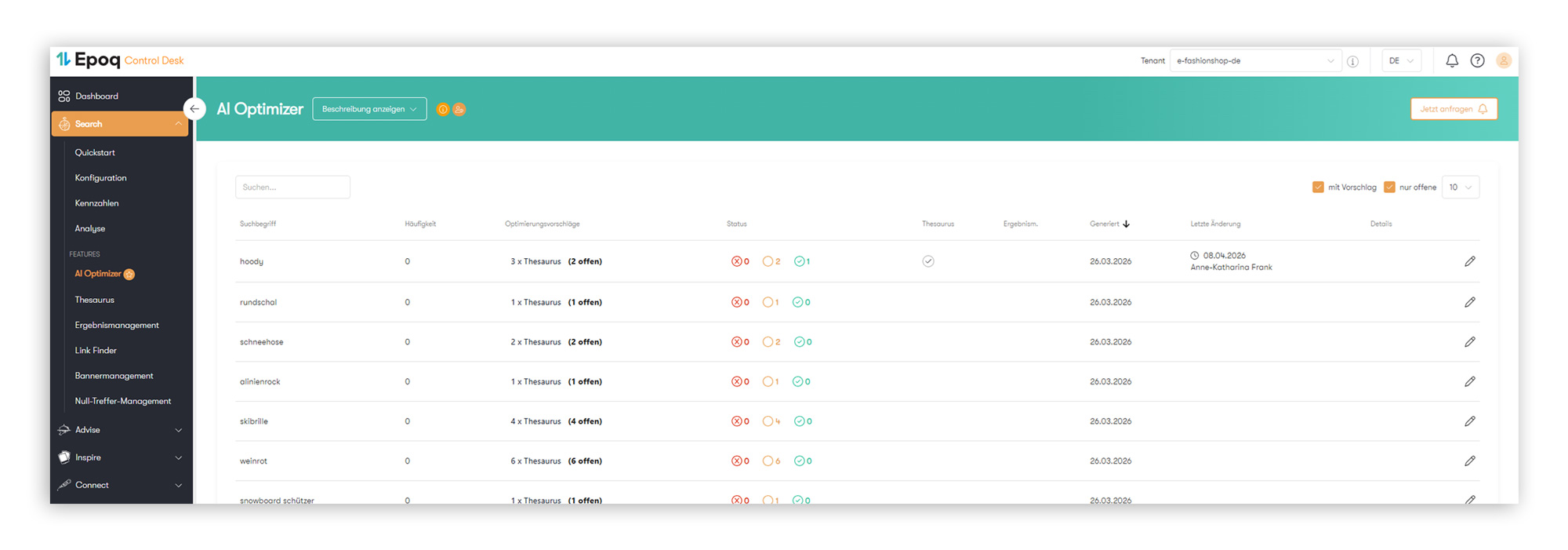
Overview of the AI Optimizer in Control Desk, showing all analyzed search terms at a glance (Source: Screenshot from Epoq Control Desk)
Now that you know what the AI Optimizer is and what benefits it offers, let's move on to how to use it in Control Desk.
How-to: The AI Optimizer in Control Desk
Below, we'll show you how the overview and detail views are structured and how to make the most of the suggestions.
AI Optimizer – Overview
In thesummary table, you'll findall the search terms that the AI Optimizer has analyzed—including potential optimization suggestions, their status, and the corresponding editing options.
By default, only terms for which optimization potential has been identified are displayed. If you’d also like to see terms that have been reviewed but didn’t receive a suggestion, you can turn off the “open only” and “with suggestion” filters.
Columns at a glance:
- Search term: Displays the search terms for which AI has generated useful optimization suggestions
- Frequency: Indicates how often a search term was searched for in the 30 days prior to the generation of the suggestion
- Optimization suggestions: Displays the number of suggestions identified and their current processing status
- Status: The status is highlighted in color:
- Red circle with an X – Proposal rejected
- Orange circle without a checkmark – proposal is still pending (not processed)
- Green circle with a checkmark – Proposal accepted
- Thesaurus and Results Management: Indicates whether entries for the search term already exist in the thesaurus or Results Management
- Generated: The time at which the proposal was created
- Last modified: Indicates whether this entry has already been updated
- Pen: Detailed view for editing the optimization suggestion
AI Optimizer – Detailed View
Clicking the pencil icon in the list takes you to the details view for a search term. Here you'll find allAI-powered suggestions and can edit them directly.
Note: In the first version, the AI Optimizer provides only thesaurus suggestions. Future versions are planned to include additional search features, such as results management.
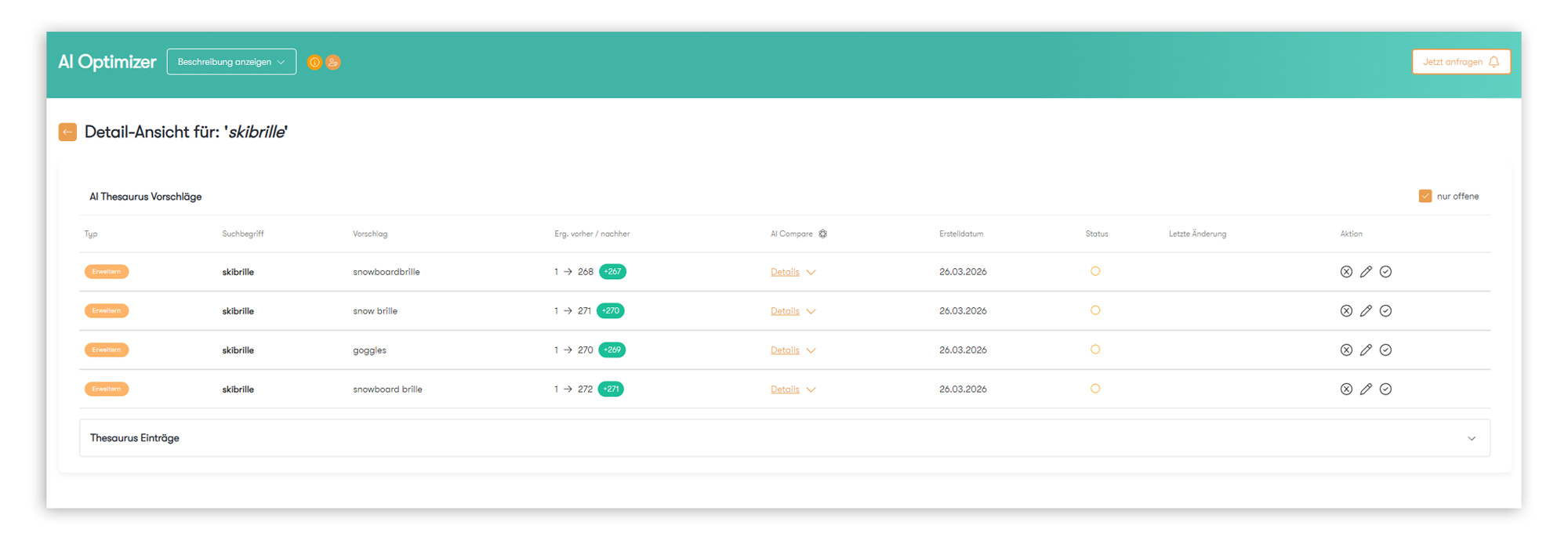
The detailed view in AI Optimizer displays suggestions and a comparison of the result sets (Source: Screenshot from Epoq Control Desk)
Columns in detail:
- Type: What thesaurus type does the AI suggest for this search term?
- Search term: The search term to be optimized
- Suggestion: The term recommended by the system based on AI analysis
- Before/After Result Set: Shows how the search result set would change based on the suggestion; a reduction in the result set shown in red usually means that the previous search results were of poor quality—this should occur only rarely
- AI Compare: A detailed AI explanation of why the proposal makes sense and how it would improve search results
- Preview of additional products: The preview shows how the search results would change if you accepted the suggestion—comparing them with the current search results in the store helps you make an informed decision
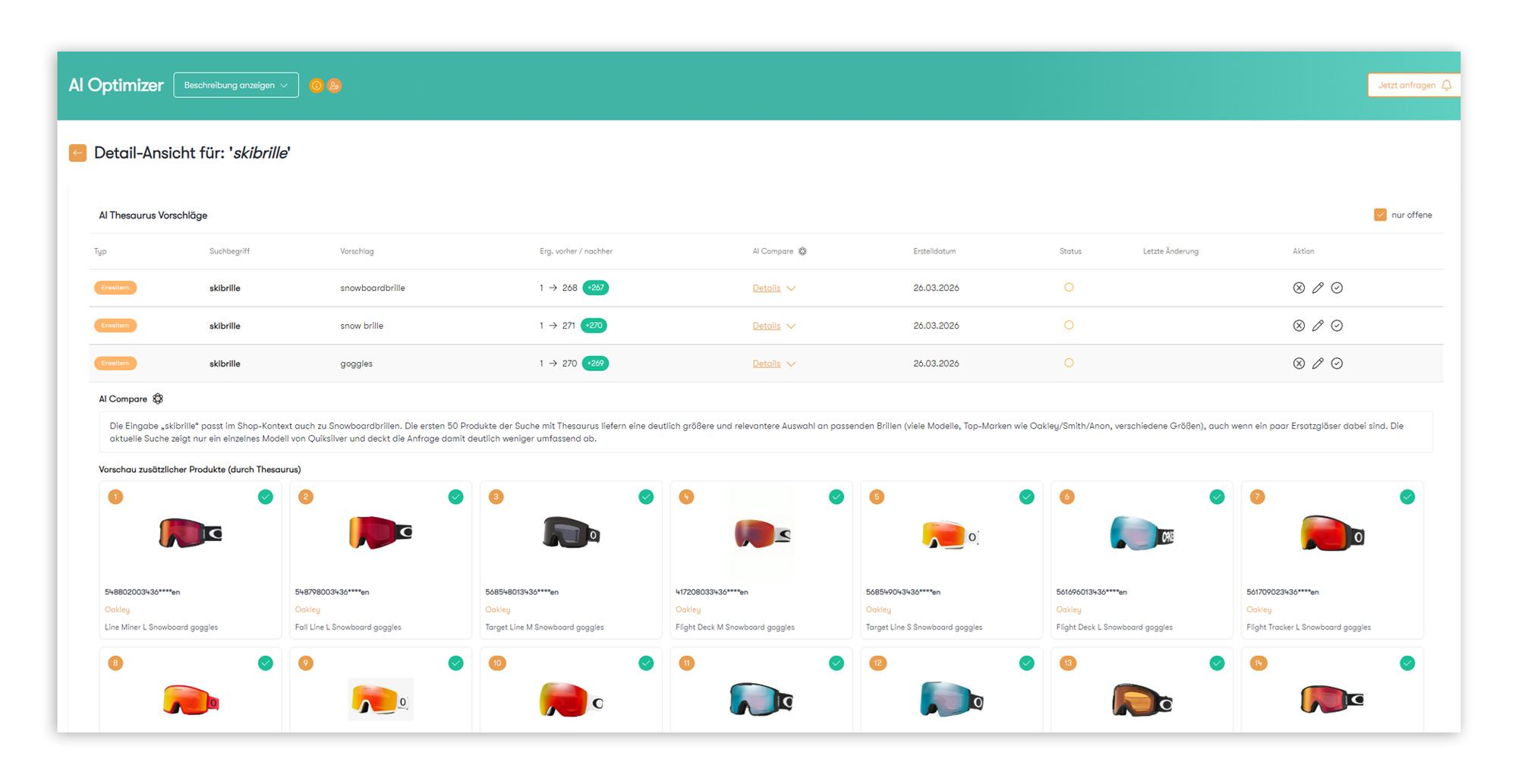
The preview of additional products shows how the search results would change if an optimization suggestion were accepted (Source: Screenshot from Epoq Control Desk)
Note: In the product preview, you’ll see a number in the top-left corner. This number indicates the product’s position in the search results at the time the suggestion was generated. A green checkmark may also appear in the top right corner. This checkmark indicates that the LLM has validated the product as a good match for the search query. Products without a checkmark were displayed in the search results but are not considered by the AI to be the best match for the search intent—for example, if a search for “hoodie” also returns “hoodie dresses” that do not exactly match the type of product being sought.
Outlook: In the next step, the AI will provide even better support in filtering out irrelevant results. The plan is for the LLM to automatically generate appropriate suggestions for result management entries (e.g., “Exclude dresses”) for results that do not perfectly match the search intent. This will create an even better foundation for precisely optimizing search results in the future.
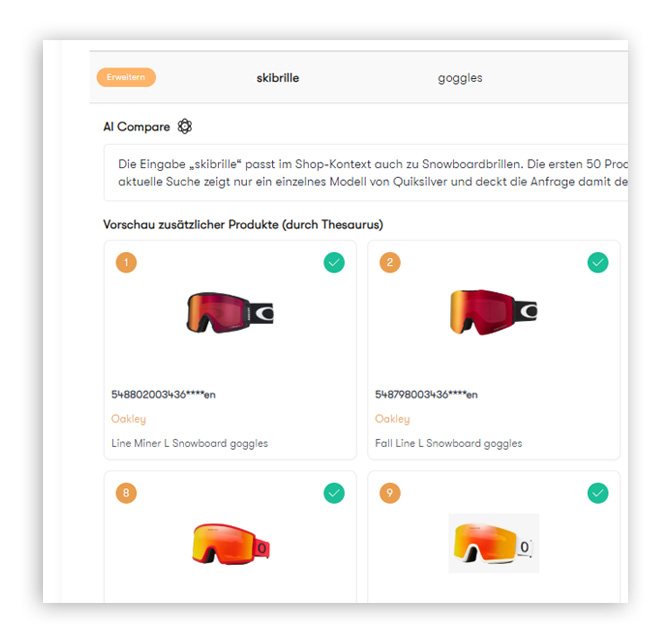
The product preview shows the product's position at that time, as well as a green checkmark for results that have been validated as matching the search query (Source: Screenshot from Epoq Control Desk)
- Creation date: When was the proposal generated?
- Status: What is the status of the proposal (rejected, pending, accepted)?
- Last changes: Has a change already been made here?
- Promotion: The "Action" column offers three options:
- Reject (circle with an X) – Proposal is rejected
- Accept (circle with a checkmark) – The suggestion is accepted immediately
- Edit (pencil) – The suggestion opens in the thesaurus and can be customized and then saved
If a thesaurus entry already exists for the search term, it will appear directly below the AI thesaurus suggestions. This allows you to review existing entries and edit them if necessary.
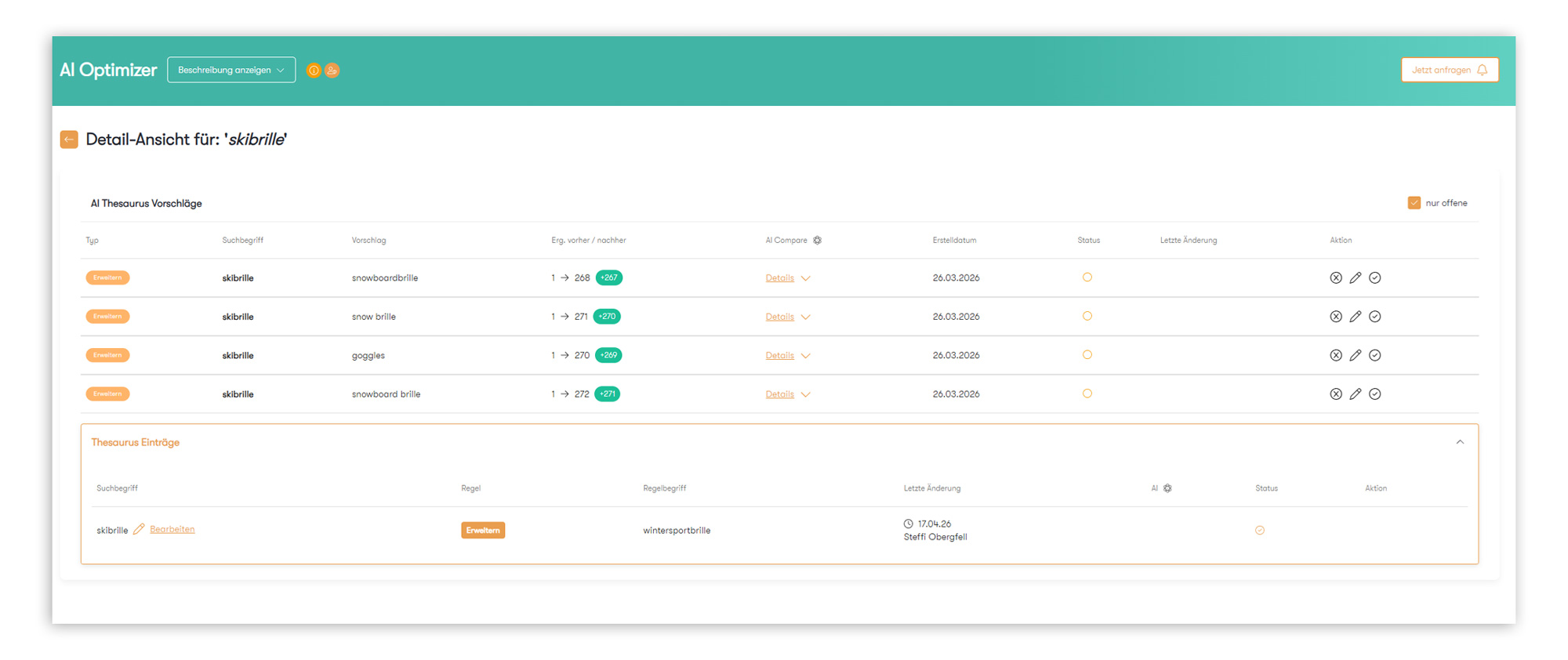
In the detail view, existing thesaurus entries are displayed below the AI-powered suggestions (Source: Screenshot from Epoq Control Desk)
To better understand how the AI Optimizer works in practice and exactly what you can use it for, let’s look at an example.
Use Case: The search term "scarves" returns results but no clicks
The term"scarves"appears in search queries that don't result in clicks. This is often a clear indication that while results are found, they don't align well with the user's actual search intent. Since the term is also frequently searched for, it is added to the AI Optimizer's checklist.
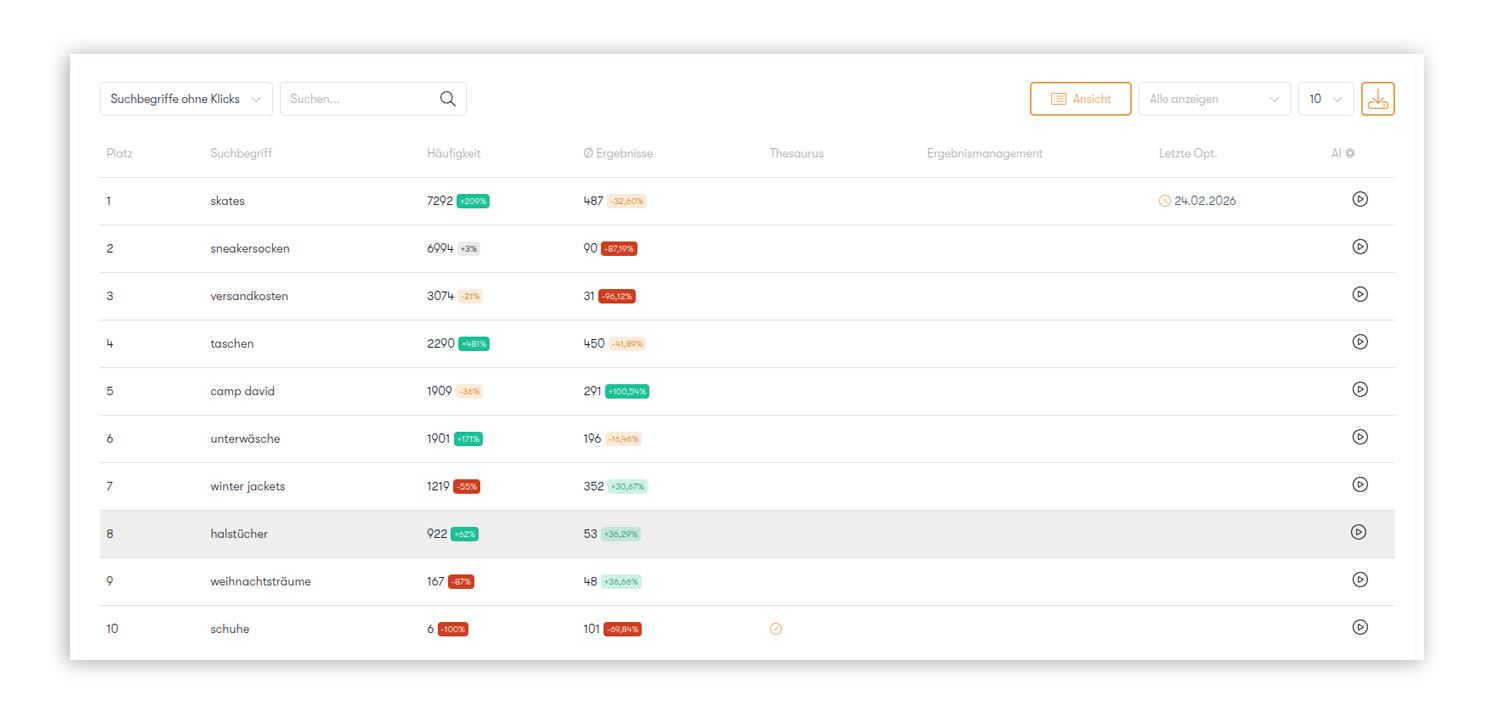
The term "scarves" appears in the list of search terms with no clicks—a clear indication that optimization is needed (Source: Screenshot from Epoq Control Desk)
If you're quicker and spot the term beforehand, you can also trigger it manually directly from the analysis.
Step 1: Check for potential thesaurus entries
Products matching the search term “scarves” are available in the product range, but they are listed in the shop as “neck warmers.” The two terms are linguistically so different that the error tolerance does not apply here. The AI Optimizer identifies this term as a possible thesaurus suggestion and validates the newly added products.
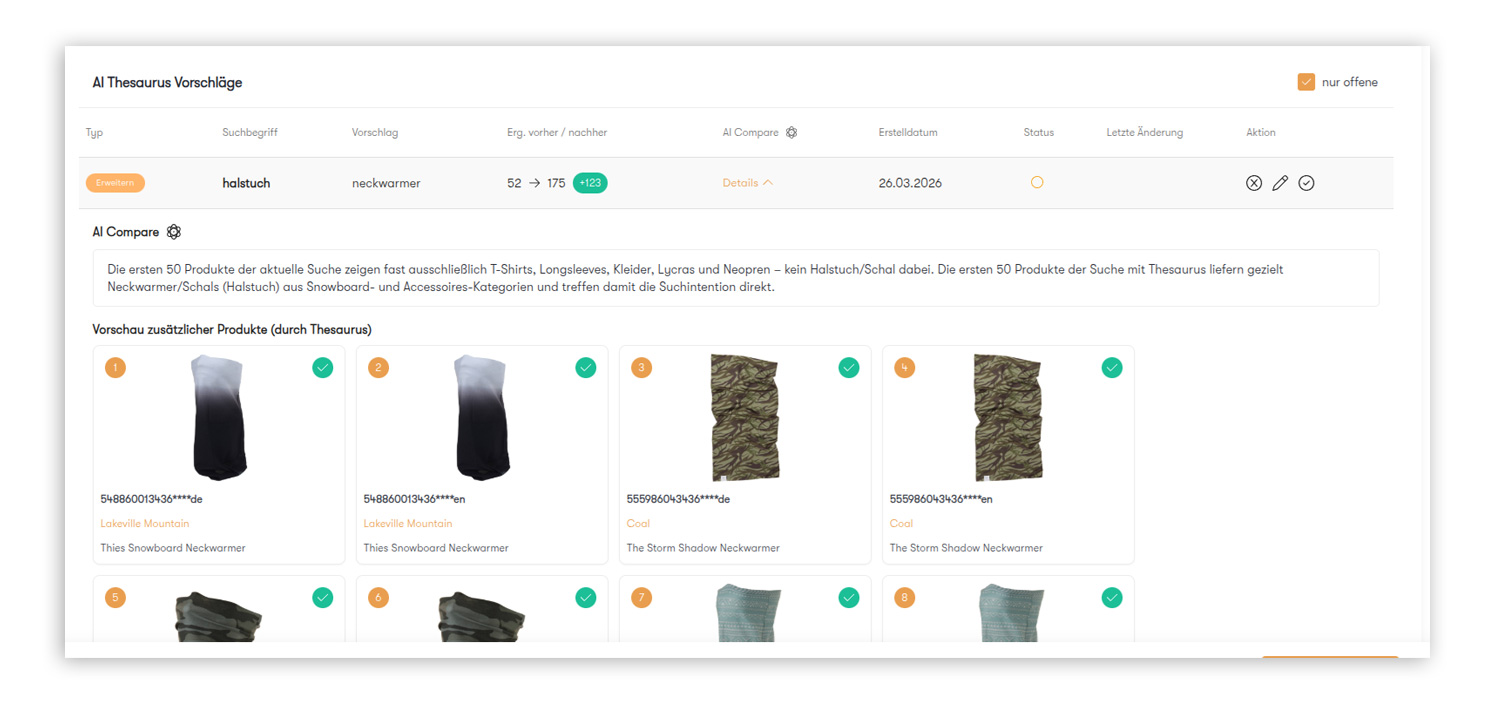
The AI Optimizer suggests the term "neckwarmer" for "halstuch" and displays the updated set of results and a preview of additional products in the detailed view (Source: Screenshot from the Epoq Control Desk)
A search for"neckwarmer"yields excellent results: it finds exactly the right items. The AI Optimizer can mark these results as relevant and add the suggestion to the AI Optimizer.
Step 2: Review the entire search results
The new products added via the "neckwarmer" thesaurus entry have already been reviewed and do not require optimization. Since the search for "scarves" has not generated any clicks so far, it stands to reason that the current search result is not optimal. In addition to relevant results, products may also appear there that are only thematically related—for example, items from the “Clothing” category that “can be paired with a scarf.”
To prevent the search results from becoming diluted, these irrelevant results should be excluded. In this case, that means specifically: The "Clothing" category is excluded from the search results for "scarves" using result management.
Currently, this step is still done manually. In the future, the AI Optimizer will also provide automated suggestions for this, which you’ll simply need to confirm—or which can be automatically applied in clearly non-critical cases.

Recommendations for Use
The AI Optimizer checks daily to see if there are any useful optimizations for the search terms you’ve entered. We recommend incorporating the AI Optimizer’s suggestions into your daily workflow. Older suggestions should always be compared with the current search results in the store, as they may become outdated over time.
The appropriate action depends on the specific suggestion:
Depending on the situation, it may be necessary, for example, to activate a thesaurus entry or remove irrelevant results from the search results.
Changes to the Analysis and Thesaurus
The AI Optimizer not only makes it easier to optimize search results, but also improves the analysis and thesaurus features in Control Desk. This makes areas for optimization more quickly apparent and reduces the need for manual steps.
AI Optimizer in the Analysis
The analysis now shows at a glance whether entries for a search term already exist in the thesaurus, results management, or the AI Optimizer. Additionally, manual AI optimization for individual search terms can be initiated there.
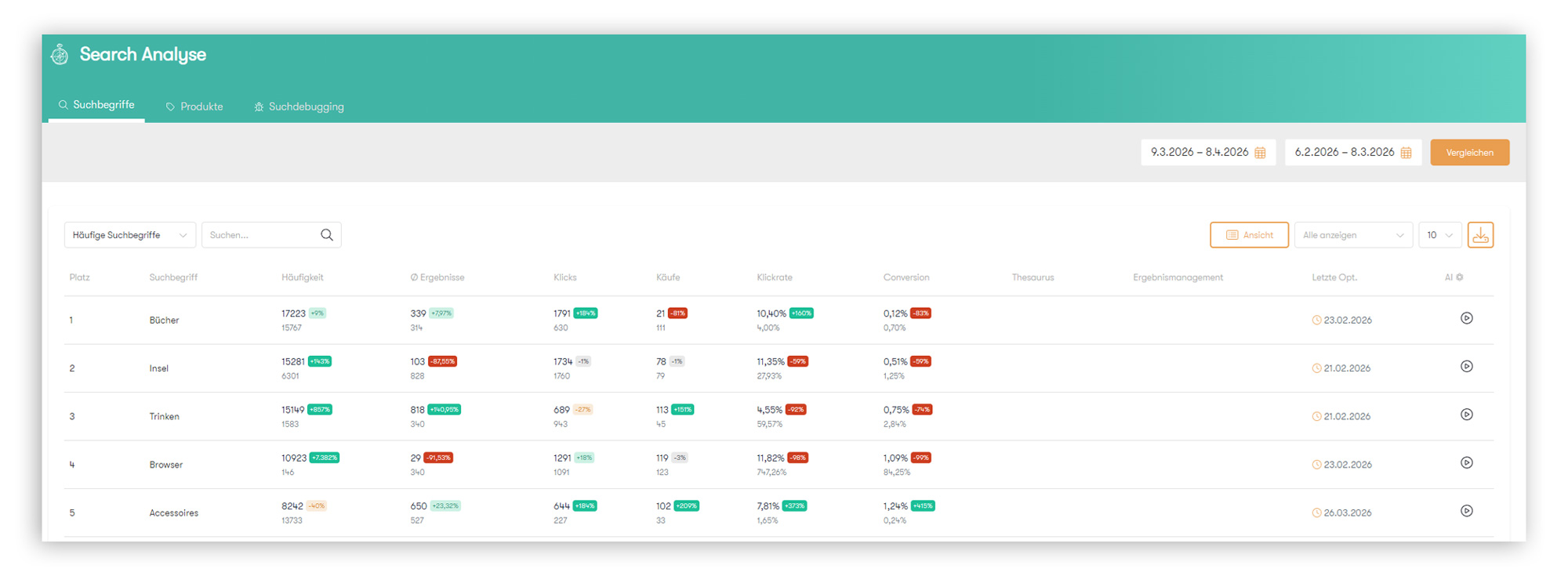
The Analysis view shows at a glance which search terms already have entries from the thesaurus, results management, or the AI Optimizer (Source: Screenshot from the Epoq Control Desk)
AI Optimizer in the Thesaurus
In the thesaurus, a new column highlights entries that originally came from the AI Optimizer—for greater transparency and traceability.
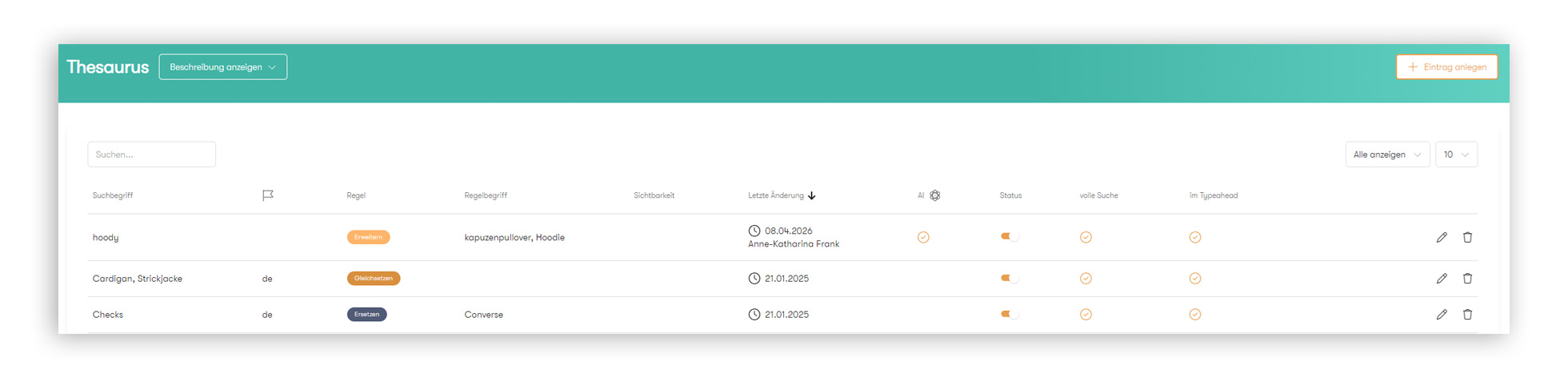
In the thesaurus, an additional column indicates which terms were previously generated as suggestions in the AI Optimizer (Source: Screenshot from the Epoq Control Desk)
Bottom line: Greater relevance with less effort—with the AI Optimizer
The AI Optimizer fundamentally changes the way search queries are optimized. What previously required manual labor, experience, and a significant amount of time is now automated with the help of AI: search terms are analyzed daily, opportunities for optimization are identified, and specific suggestions are provided directly in the Control Desk. The result: less manual effort, greater efficiency, and a search experience that continuously improves. Those who regularly review and implement the suggestions benefit from a more relevant search experience for users and an optimized product range that is easier to find.
With planned enhancements such as suggestions for performance management and the Link Finder, the AI Optimizer will become even more powerful in the future—a feature that grows along with your store.
Frequently Asked Questions About the AI Optimizer
The AI Optimizer analyzes incoming search queries on a daily basis and generates new optimization suggestions as needed.
The suggestion is added directly as a thesaurus entry and is available for searching immediately.
A suggestion can be undone in the AI Optimizer immediately after it is accepted. Accepted suggestions can also be edited or removed at any time using the thesaurus.
This is usually a sign that the previous search results were of poor quality. In this case, the AI Optimizer filters out irrelevant results—though this should rarely happen.
Not yet in the current version. This feature is already planned for the next version.
The thesaurus now includes a new column that flags relevant entries as AI-generated.
Manual approval is designed this way on purpose so that you retain control: Synonyms are often store-specific, and not every suggestion is a good fit, which is why there is currently no “Accept All” button. In the next version, we plan to automatically activate non-critical suggestions to further reduce your workload.
This is normal: Not every searched keyword offers meaningful optimization potential. Keywords without suggestions are hidden by default—but you can show them if needed and still view them.
Because “Replace” is often too rigid. The “Expand” rule in the thesaurus is better suited for this and is much more flexible than the “Replace” rule: The search term is retained and meaningfully expanded upon, rather than being completely overwritten.
Increase your personalization success
Do you have any questions or need help with optimization? Our Customer Success Team will be happy to assist you.

Log in to yourControl Desknow and start optimizing.

Anne-Katharina Frank
Customer Success ConsultantYou are currently viewing placeholder content from HubSpot Embedded Content. To access the actual content, click the button below. Please note that doing so will result in data being shared with third-party providers.
More InformationYou are currently viewing placeholder content from HubSpot. To access the actual content, click the button below. Please note that doing so will result in data being shared with third-party providers.
More InformationYou are currently viewing placeholder content from HubSpot Meetings. To access the actual content, click the button below. Please note that doing so will result in data being shared with third-party providers.
More Information