
- Reduce Bounce Rate
- Control Desk
Results management: How you can now optimize result sets in Control Desk even more precisely
Would you like to optimize a specific set of results even more precisely by displaying certain products at the top or bottom? Would you like to exclude some products from the results? And ideally, would you like these options to be available for categories, brands, and colors as well? The new version of results management allows you to do just that and has a lot more in store for you besides the new design. What exactly? Find out in this blog article.

Here's what you can expect to find in this blog article:
New features in results management
Overview: Access to all functions
Configurator: Which result set would you like to edit?
Processing: What should the result set look like?
Selection of products by attributes
Weighting of results
Exclusivity of a result set and exclusion of individual products
New features in results management
In the new version of results management, we have added several new features that make it easier for you to edit result sets.
These are the new features:
- In addition to the results for a search term, the results for a navigation level can now also be optimized.
- You can also use filter criteria to change search result sets or product lists (navigation) specifically for certain filters or filter combinations.
- New attributes are now available for selecting products for the result, such as category, brands, and colors.
- You can exclude attributes from a result set or set them as exclusive.
- Optionally, you can manually sort the order of the results.
- For each entry, you have the option of specifying the validity period and country code.
Now we will show you step by step how to use the new result management feature to select the set of results you want to edit and how to optimize the result yourself.
Stay up to date on personalization: Sign up for the Epoq newsletter: Register now!
Overview: Access to all functions
Here you can see an overview of your entries in results management. You can see the triggers, filters, validity, and the date on which the entry was last changed. You can activate or deactivate entries at any time using the slider under Status. In the overview, you also have the option of duplicating a results management entry.
You can also access the configurator and edit mode here.
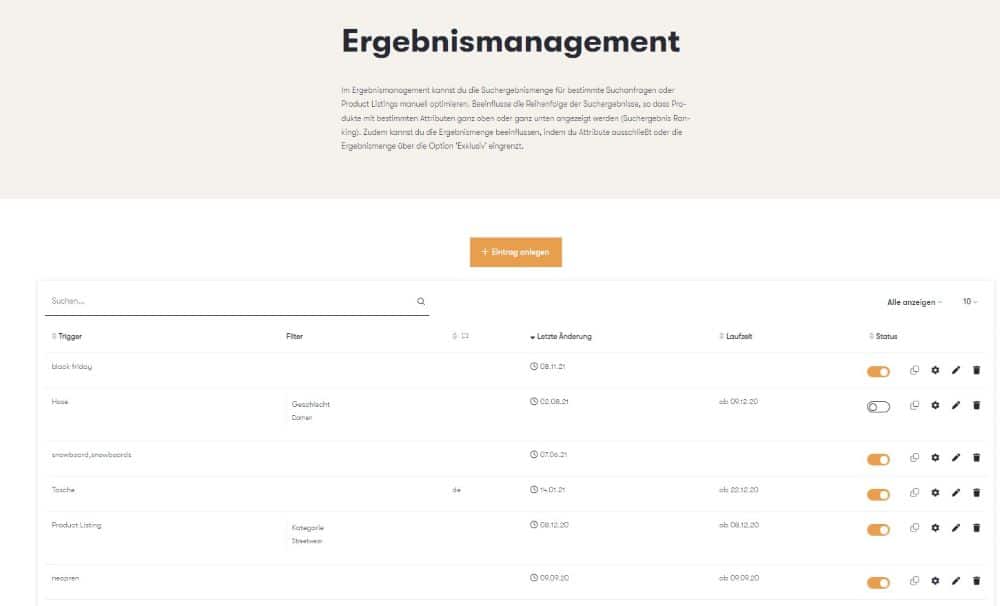
The new results management in the Control Desk
Configurator: Which result set would you like to edit?
In the configurator, you determine for which requested result you want to edit the result set.
To do this, first define the trigger: Search term or Product Listing.
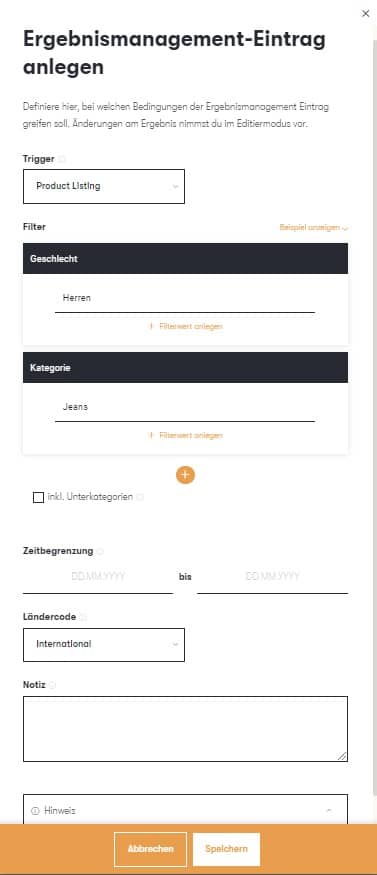
If you want to return a result set using the trigger Product Listing , proceed as follows:
We now want to edit the result for the category "Jeans" under the navigation level "Men." To do this, select "Gender" in the first filter and enter "Men" as the filter value. For the second filter, select "Category" and the filter value "Jeans."
For the trigger search term , we will now select the search term "T-shirt." However, you do not want to edit the results for all T-shirts, but only for cases where the filter "Gender" is set to "Women" and the filter "Brand" is set to "Roxy" and "Adidas." To do this, enter "T-shirt" as the search term. Select "Gender" as the first filter and "Women" as the filter value. Select "Brand" as the second filter with the filter values "Roxy" and "Adidas."
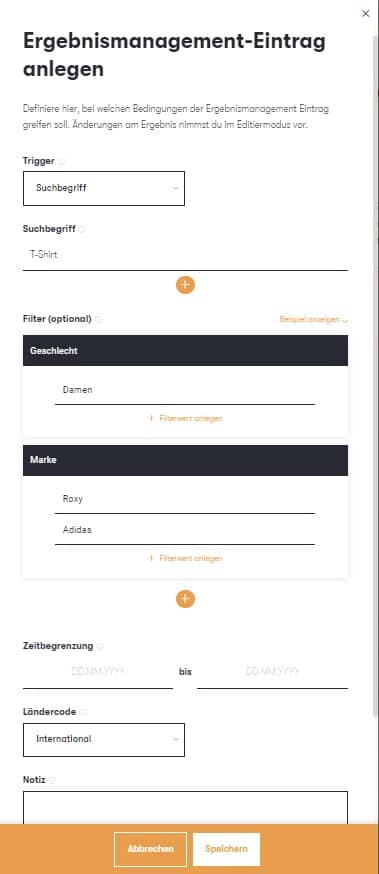
Important: Multiple filters are linked by an AND operator, while filter values are linked by an OR operator.
In addition, you can specify the validity period here, as well as the country code for which the result should be valid.
Processing: What should the result set look like?
Selection of products by attributes
Once you have determined which result should be optimized, the next step is to edit the corresponding result set. To edit the result set, you can use various attributes that are assigned to individual products. You can select the following attributes for this purpose:
- Gender,
- Brand,
- Product ID,
- Search results in the shop,
- Category,
- Extras
- and color
Here we would like to introduce thecategory attributein particular.
Under category , the exact same data structure of the categories is displayed as it is stored in your product catalog. You can drill down into the category tree as deeply as you like until you reach the level where you find the products you want to edit for the result set.
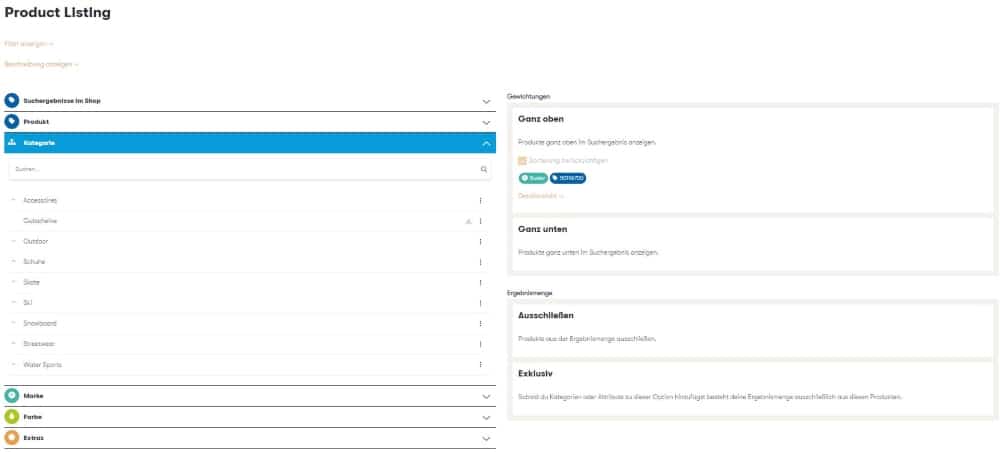
Selection of products by category
Weighting of results
There are various options available for editing products. Under Weighting, you can:
- either display at the top
- or display at the bottom.
Have you assigned your attributes to the respective options? Great! Now you have the opportunity to use the "Consider sorting" checkbox to decide whether you want to display the products in the results in a specific order.
Please note: Once you have selected various attributes (e.g., category and color), your sorting will be automatically applied.
To do this, you can either drag and drop the tags into the desired order or use the numbering system in the detailed view.
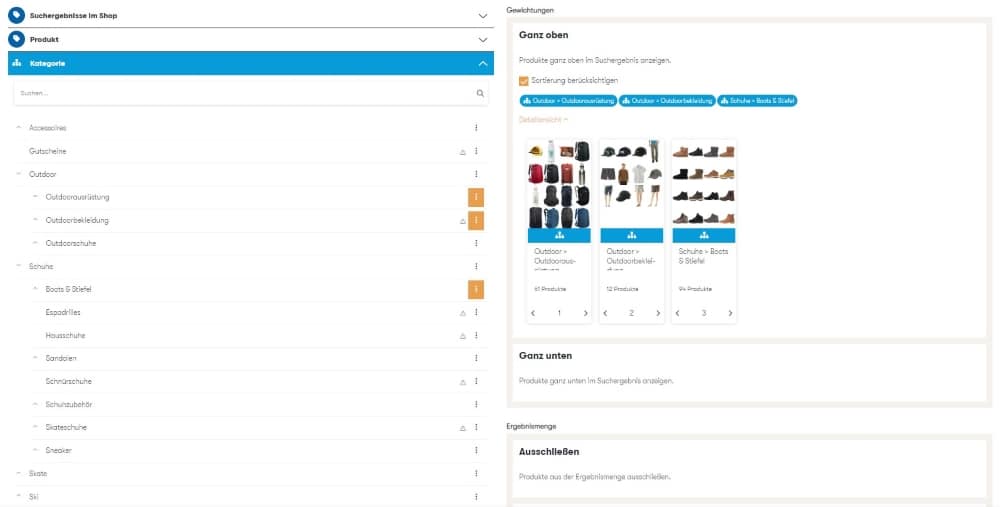
Weighting of selected categories taking sorting into account
Exclusivity of a result set and exclusion of individual products
You can also influence the result set by excluding attributes or narrowing down the result set using the "Exclusive" option. Products under "Exclude" are completely excluded from the result set. Narrowing down means that only the products in the result set that you have assigned as "Exclusive" are displayed .
Exclusive can be used here, for example, for the search term "bracelet" so that only products from the "bracelets" category are displayed and no wristwatches.
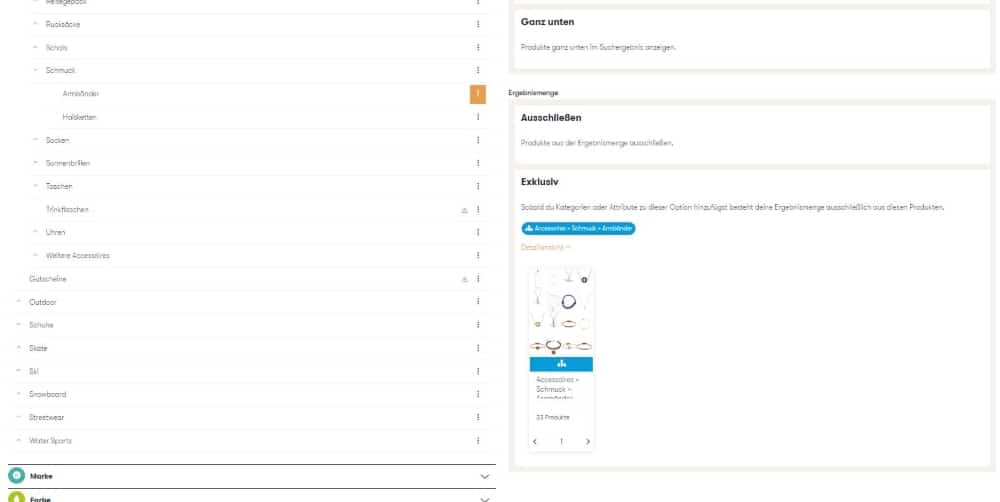
Limiting the results to the bracelet category for the search term "bracelet"
To enable you to edit quickly, we have included a feature that allows you to move tags both vertically and horizontally using drag & drop.
Stay up to date on personalization: Sign up for the Epoq newsletter: Register now!
Conclusion
The new version of results management allows you to optimize your results sets with precision. Using the configurator, you can now select not only a search term but also a navigation level. When editing the results set, you can also quickly select products using new attributes.
The new results management system is currently being rolled out gradually. If it has not yet been activated for you and you would like to start working with it, please contact your technical project manager.
Increase your personalization success
Do you have any questions or need help with optimization? Our Customer Success Team will be happy to assist you.

Log in to your Control Desk now and start optimizing. Don't have Control Desk access yet? You can request your account here » Request Control Desk account

Anja Hossinger
UX/UI designerYou are currently viewing placeholder content from HubSpot Embedded Content. To access the actual content, click the button below. Please note that doing so will result in data being shared with third-party providers.
More InformationYou are currently viewing placeholder content from HubSpot. To access the actual content, click the button below. Please note that doing so will result in data being shared with third-party providers.
More InformationYou are currently viewing placeholder content from HubSpot Meetings. To access the actual content, click the button below. Please note that doing so will result in data being shared with third-party providers.
More Information