
- Reduce Bounce Rate
- Control Desk
How to semantically enrich search results using the thesaurus in Control Desk, and how AI can help you do this
As an e-commerce professional, you strive to make it as easy as possible for your customers to find products in your online store. Your keywords are undoubtedly of particular importance in this regard. After all, search results that don’t match what customers are looking for—or a page with no results—are often caused by slight variations in search terms. With the help of the thesaurus in Control Desk, you can prevent this problem by semantically optimizing your keywords according to your specific needs. In this article, you’ll learn how this works and how AI can provide targeted support in this process.

Here's what you can expect to find in this blog article:
How does the thesaurus work?
Expand
Equate
Exclude
Replace
AI: Automatic Thesaurus Suggestions with the AI Optimizer
Conclusion: Semantic keyword optimization—now even easier thanks to AI
Howdoes the thesaurus work?
The Thesaurus section can be found in Control Desk under the Search → Features tab. This tool allows you to semantically expand any keywords with just a few clicks. This increases the likelihood that visitors to your online store will actually find what they're looking for thanks to ecommerce search engine.
The following four rules are available to you:
- Expand
- equate
- Exclude
- Replace
You can semantically expand the desired search terms individually using the Create entry button. To do this, simply select the rule that should apply to the respective keyword in the user interface.
Stay up to date on personalization: Sign up for the Epoq newsletter. Register now!
Expand
Expand allows you to expand search terms with an alternative term.
Example: Customers searching for"dress"should also see search results for"evening dress."If someone searches for"evening dress," only results for that search term should appear.
- First, type in thesearch term"dress."
- Under "Expand with," select the option "evening gown." If necessary, you can also add additional synonyms for the search term here using the plus icon.
- Select one of the options Exact or Contains. The Exact option, which is selected by default, means that the entry only applies if the search term is searched for on its own and consists exclusively of exactly these letters. If the option "contains" is selected, search terms that contain the specified search term are included. This option should only be used for search terms that are certain to have no other meaning, such as the term "Advent calendar."
- Set the country code. Additionally, select a country code if the entry is to be used for a specific language.
- Specifytheapplicationand decide whether the entry should be used for the standard search and/or for typeahead.
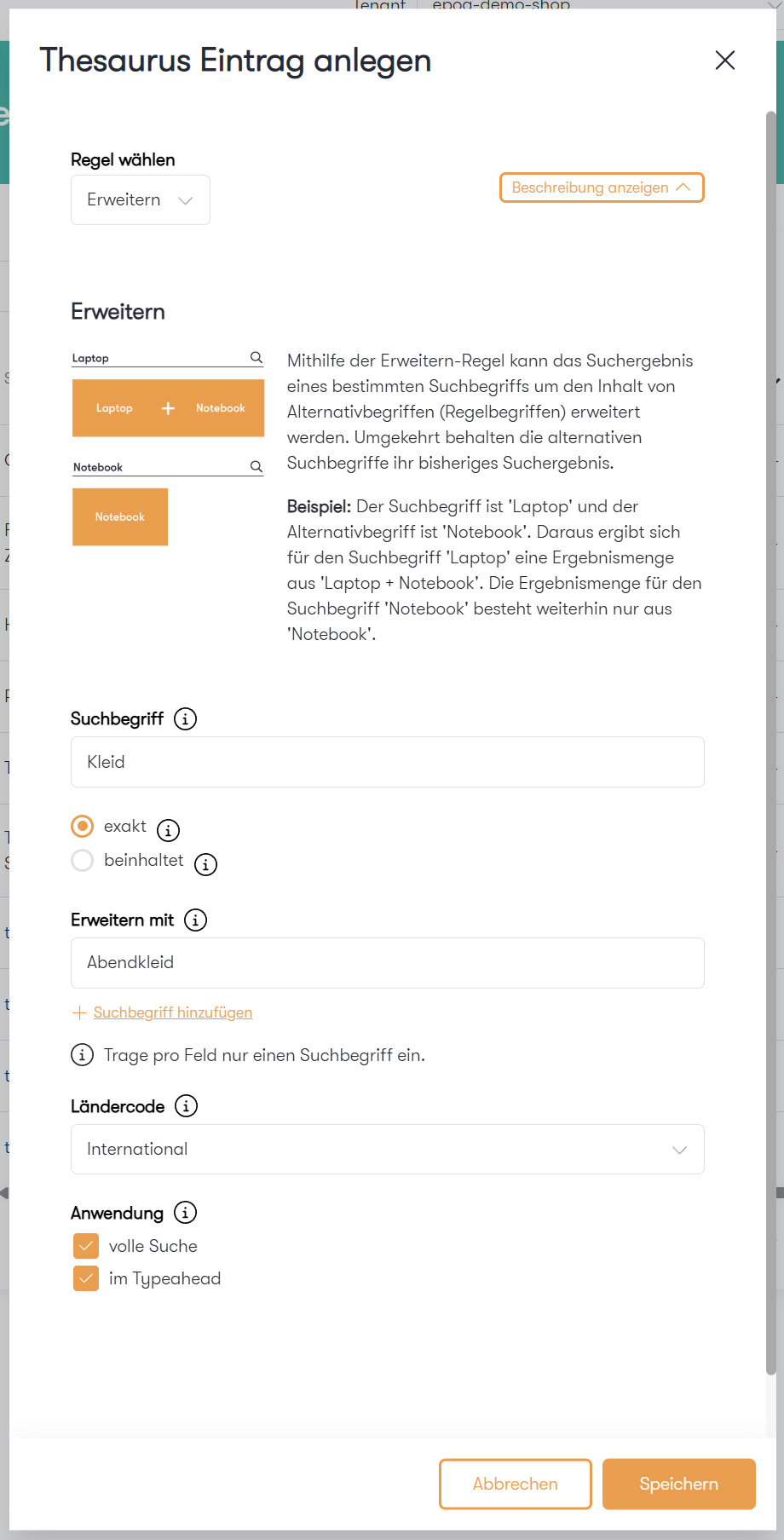
Example of expansion: While entering the search term "dress" also displays results for "evening dress," users searching for "evening dress" will only see results for "evening dress."
equate
By equating , you assign synonymous terms to a search term.
Example: Customers searching for "socks" or "stockings" should receive the same search results in both cases.
- To do this, enter all keywords that should be synonyms for each other under " Equate search terms."
- In this case, those would be the terms "socks" and "stockings."
- Choose one of the options: exact or includes.
- Set the country code.
- Select whethertheentry should beusedfor standard search and/or for typeahead. Including synonyms in the typeahead will result in suggestions being generated for the additional term as well.
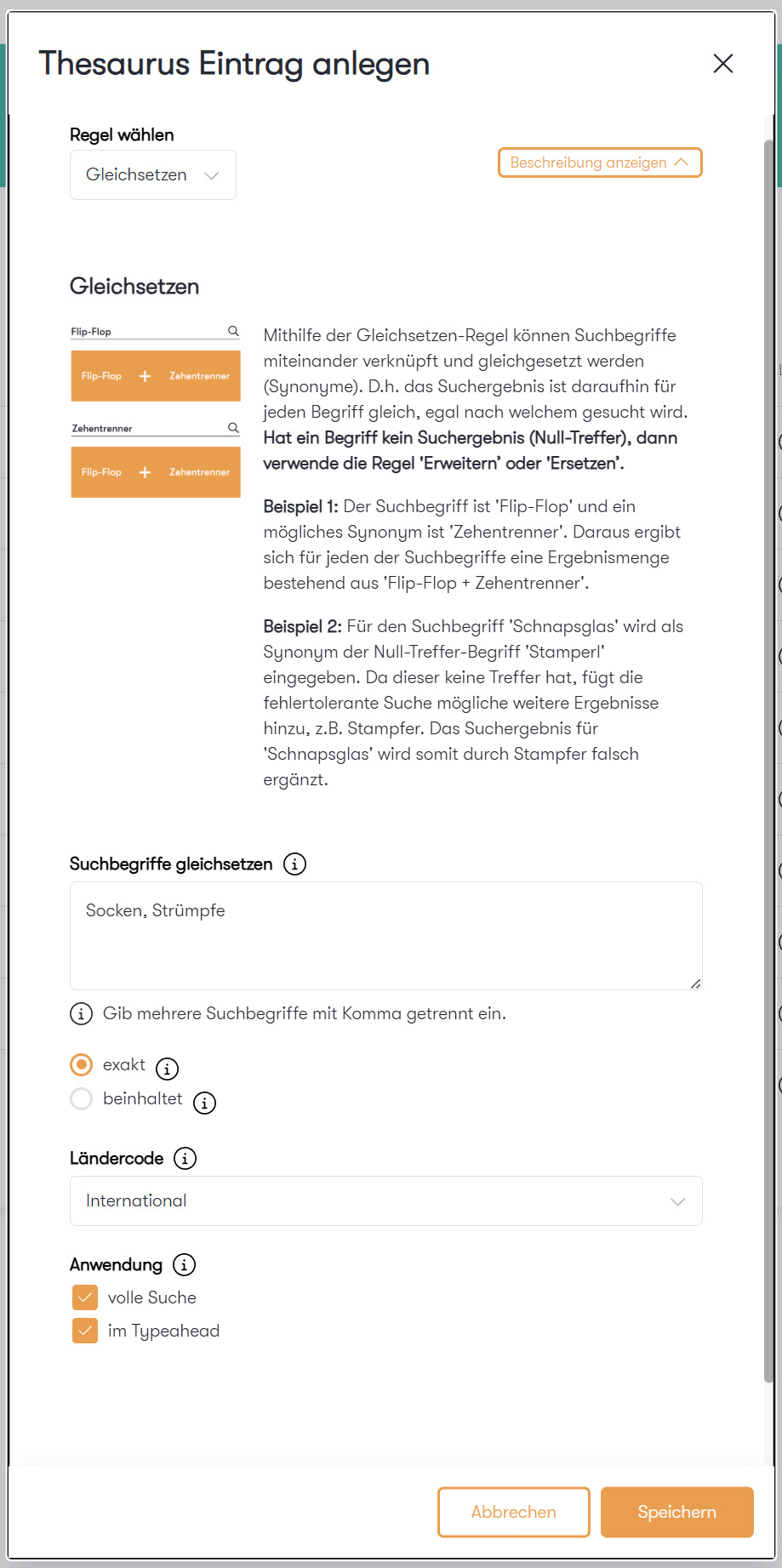
Example of equating: From now on, identical search results will appear for both the keyword "socks" and the synonym "stockings."
Exclude
The Exclude rule allows you to exclude inappropriate search terms.
Example: Customers searching for "embroidery" should not receive search results for "knitting."
- First, enter"embroidery" asthe search term.
- Under Exclude word , you can exclude "knitting. " Here, too, a plus icon allows you to select multiple rule terms at the same time.
- Choose one of the options: exact or includes.
- Set the country code.
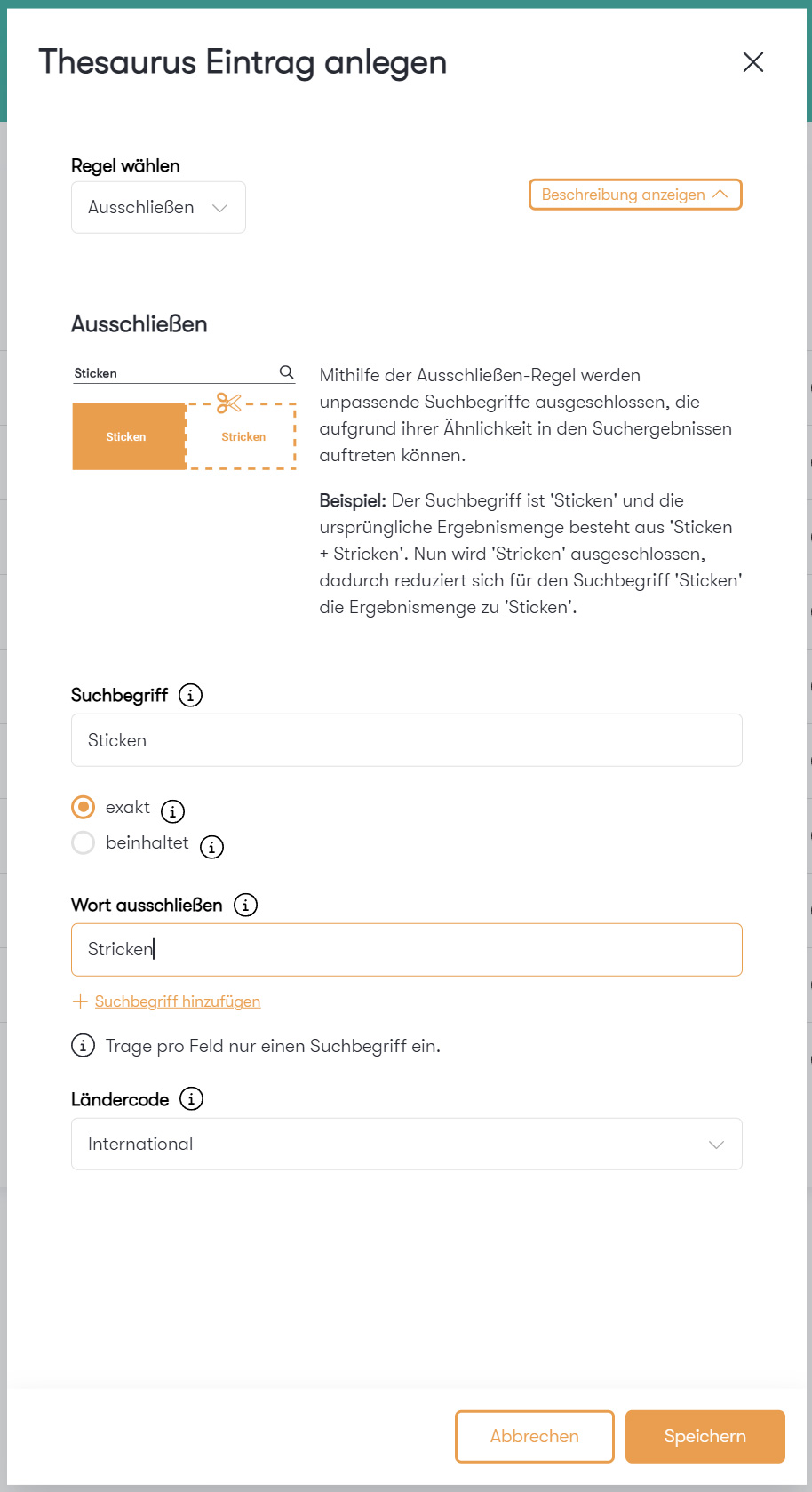
Example of exclusion: Search results for the keyword "knitting" should be excluded.
Replace
The Replace rule is used to replace search terms.
Example: Customers searching for "mini skirt" should only receive results for "skirt. "
- In the first step, enter"mini skirt"as the search term.
- Under Replace with, enter the replacement term "skirt. "
- Choose one of the options: exact or includes.
- Set the country code.
- Select whether the entry shouldbe usedfor the standard search and/or for typeahead.
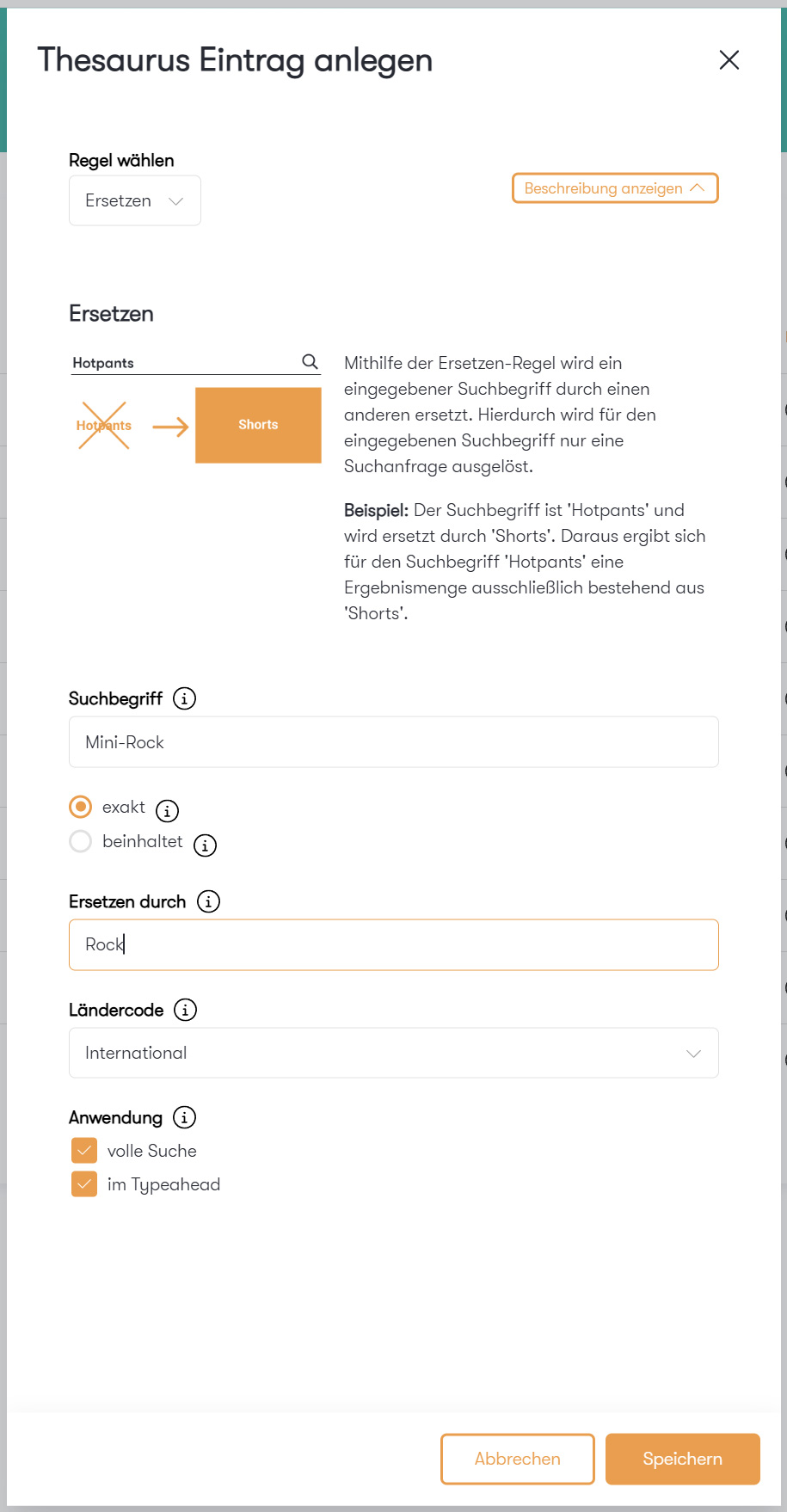
Example of replacement: The search term "mini skirt" is replaced by "skirt," and the results are adjusted accordingly.
All saved keywords can be found in the thesaurus, collected in a table. Here you can see not only the search term, rule term, rule, and last modification date, but you also have the option to activate or deactivate entries, edit them, or delete them.
Stay up to date on personalization: Sign up for the Epoq newsletter. Register now!
AI: Automatic Thesaurus Suggestions with the AI Optimizer
Our AI Optimizer feature enhances the search function by automatically identifying suitable variations or synonyms for the most relevant search terms. It then checks whether these alternative terms lead to better or more relevant search results. This makes searching even smarter, more precise, and more efficient—without any extra effort on your part.
You can find the AI Optimizer in the Control Desk under Search → Features → AI Optimizer. There, you’ll see all the search terms that have been checked by the AI Optimizer— including suggestions that can be added directly to the thesaurus, for example. With a single click, you can accept or reject a suggestion.
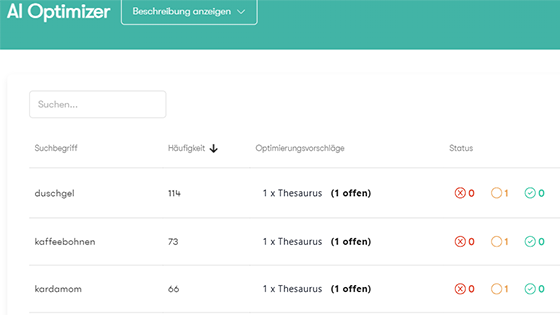
Overview of search terms analyzed by the AI Optimizer, along with corresponding optimization suggestions
If you'd like to learn more about this feature, check out our blog post on the AI Optimizer.
Want to further improve your search? In addition to the thesaurus, the Control Desk offers you further interesting ecommerce search engine tools with Link Finder, banner management, and results management.
Conclusion: Semantic keyword optimization—now even easier thanks to AI
Whether you’re equating keywords, defining alternative terms, excluding search terms, or selecting substitute terms—with the help of the thesaurus, keyword optimization becomes a simple and time-saving process. At the same time, you ensure that visitors to your online store are more likely to find the products they’re looking for. And with the AI Optimizer, it’s even easier: The AI automatically suggests suitable thesaurus entries—saving you even more time and helping you optimize your search with greater precision.
Increase your personalization success
Do you have any questions or need help with optimization? Our Customer Success Team will be happy to assist you.

Log in to yourControl Desk now and start optimizing.

Etienne Roser
Working student in marketingYou are currently viewing placeholder content from HubSpot Embedded Content. To access the actual content, click the button below. Please note that doing so will result in data being shared with third-party providers.
More InformationYou are currently viewing placeholder content from HubSpot. To access the actual content, click the button below. Please note that doing so will result in data being shared with third-party providers.
More InformationYou are currently viewing placeholder content from HubSpot Meetings. To access the actual content, click the button below. Please note that doing so will result in data being shared with third-party providers.
More Information