
- Reduce Bounce Rate
- Control Desk
Guide to Analyzing and Optimizing Your ecommerce search engine in Control Desk – Now AI-Powered
Would you like to delve deeper into your search analytics to accurately interpret customer intent based on search queries and identify opportunities for optimization? The Search Analytics section in Control Desk offers a wide range of tools to closely examine search queries, identify trends, and boost your search performance through optimizations at the keyword and product levels. We’ll guide you through the Search Analytics section in Control Desk, provide you with valuable insights, and show you how AI can specifically support you in your analysis.

Here's what you can expect to find in this blog article:
The new analysis section in Control Desk offers the following options
Select time period
Search term analysis
Examining search terms in context
Search terms in detail – Analysis of individual terms
AI-powered optimization directly within the analysis
View products in context
Products in detail – analysis of individual products
Conclusion: Comprehensive analyses enable targeted optimizations in your online store.
The new analysis section in Control Desk offers the following options
Performing a qualitative analysis and drawing the right conclusions requires an understanding of the possible correlations between the metrics and search terms in your store.
In the Search analysis area, you can evaluate the performance of your ecommerce search engine and derive optimization measures based on trends:
- What are the current trends?
- Are all relevant results found for the search queries?
- What is the customer's actual interest in a search query?
- Have my optimization measures been successful?
For analysis purposes, you can use multiple tables and charts in combination in the Control Desk. On the one hand, search terms can be viewed in different contexts, individually or in relation to each other. On the other hand, you can analyze the products.
This allows you to make targeted and rapid improvements to your online shop and use the analysis tools to measure and monitor the effects of the optimization measures.
You can access this area via the "Analysis" menu item in the Control Desk, where you will find an overview such as the one shown below.
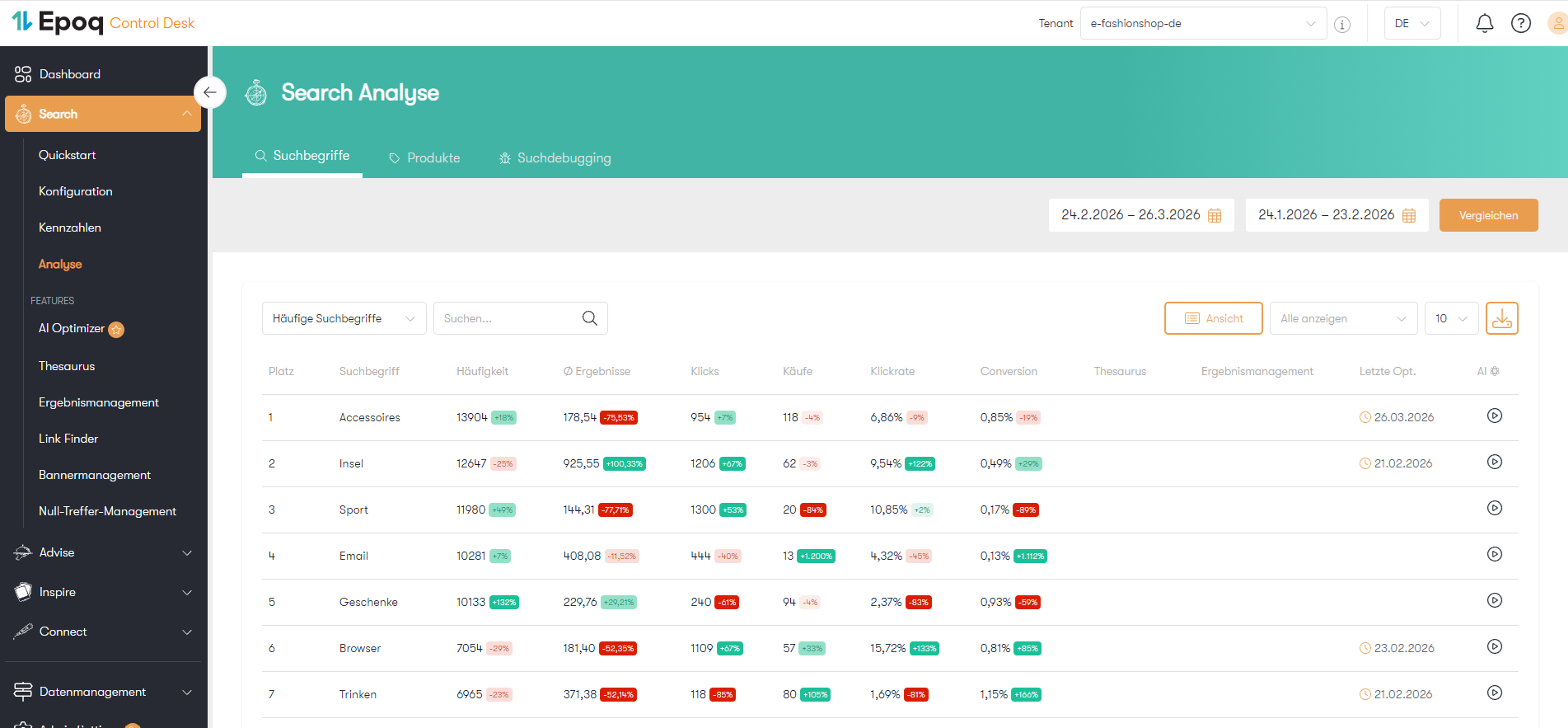
Overview of the analysis area of the search in Control Desk
To start analyzing your search, you first need to set a time period.
Select period
Start by selecting the two periods you want to analyze in your search—that is, a current period and a previous period for comparison.

Selecting a time period for the search analysis in Control Desk
To identify short-term changes and trends in your shop, we recommend comparing the current week with the previous week. Here you can also see whether any measures taken are having an effect.
For longer-term developments, it is useful to compare the current quarter with the previous quarter or the same quarter in the previous year. You can also compare the summer season with the winter season and determine when the seasonal change begins for your shop visitors.
Once you have selected the desired time period, you can start the analysis.
Stay up to date on personalization: Sign up for the Epoq newsletter. Register now!
search term analysis
Search term analysis is about finding out what your shop customers are interested in and how you can improve your shop for them. The focus here is on checking the relevance and quality of the search results. This means that the goal of your analysis and optimization is to create the best possible match between the customer's expectations of the search results and the actual search results. To do this, it is necessary to regularly review search queries and evaluate the relevance and quality of the search results.
Consider search terms in context
Search terms can be viewed from different perspectives as part of the analysis. The analysis section of the search allows you to analyze search terms in the following contexts:
- Frequently searched terms
- Most popular search terms
- Search terms with zero hits
- Search terms without clicks
- Rising and falling search terms (trends)
- New search terms with the highest sales
We will take a closer look at these various analysis options below.
Analysis of frequent search terms
The "Frequent Search Terms" table contains the top 500 search terms that were searched for most frequently in your online store during the selected period. You can use it to find out which search terms are of high interest to your customers.
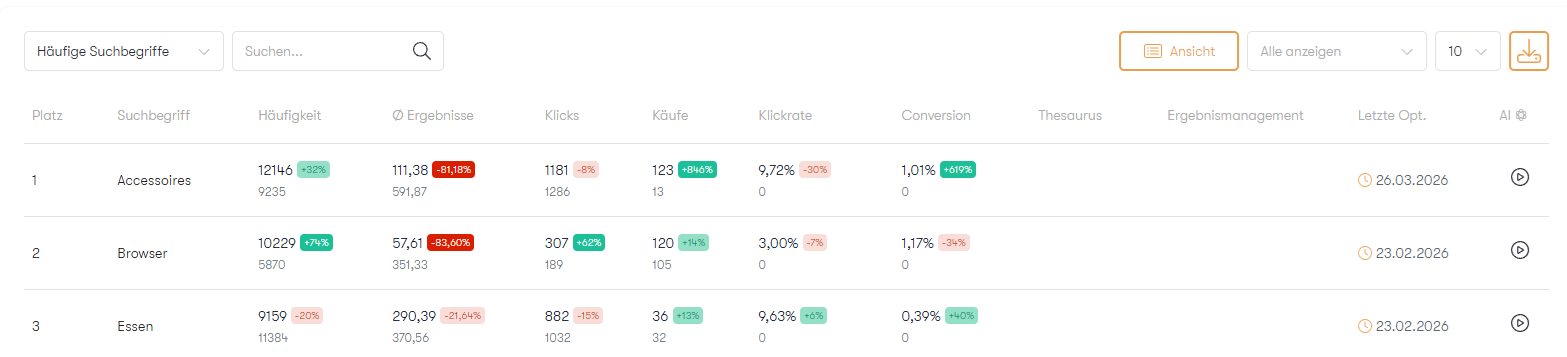
Table "Frequent search terms" in the analysis section of the search
When analyzing a search term, pay attention to the ratio of clicks, shopping carts, and purchases. If a search term has a low conversion rate, for example, you can first check whether a direct link has been set up for this term. Terms with a direct link can be identified by a small "arrow icon" in the table. These search terms are redirected directly to another page and no search results are displayed.
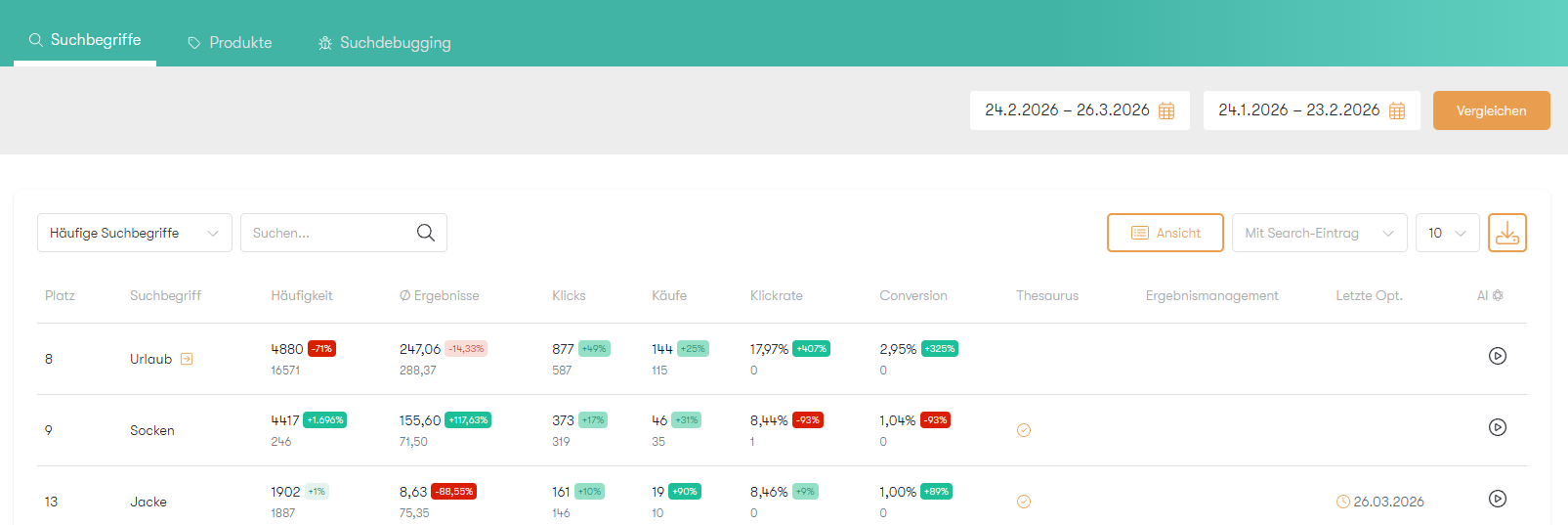
Search term with a direct link
A low conversion rate can also be an indicator that the search result does not meet the customer's expectations.
Example:
You run a lifestyle online shop selling films, CDs, and fan merchandise. The search term "plush" appears frequently in your search terms, but clicks and purchases are very low. Through detailed analysis, you determine that the "music" filter was used frequently. An investigation in the shop shows that there is a band called "Plüsch" that better meets the expectations of your shop customers than the "plush toys" that appear more prominently in the search results. You can now use result management to promote the items from the band "Plüsch." Then keep an eye on the clicks and purchases and see how the numbers change over the next few days. You can also use the "Observe" function for this.
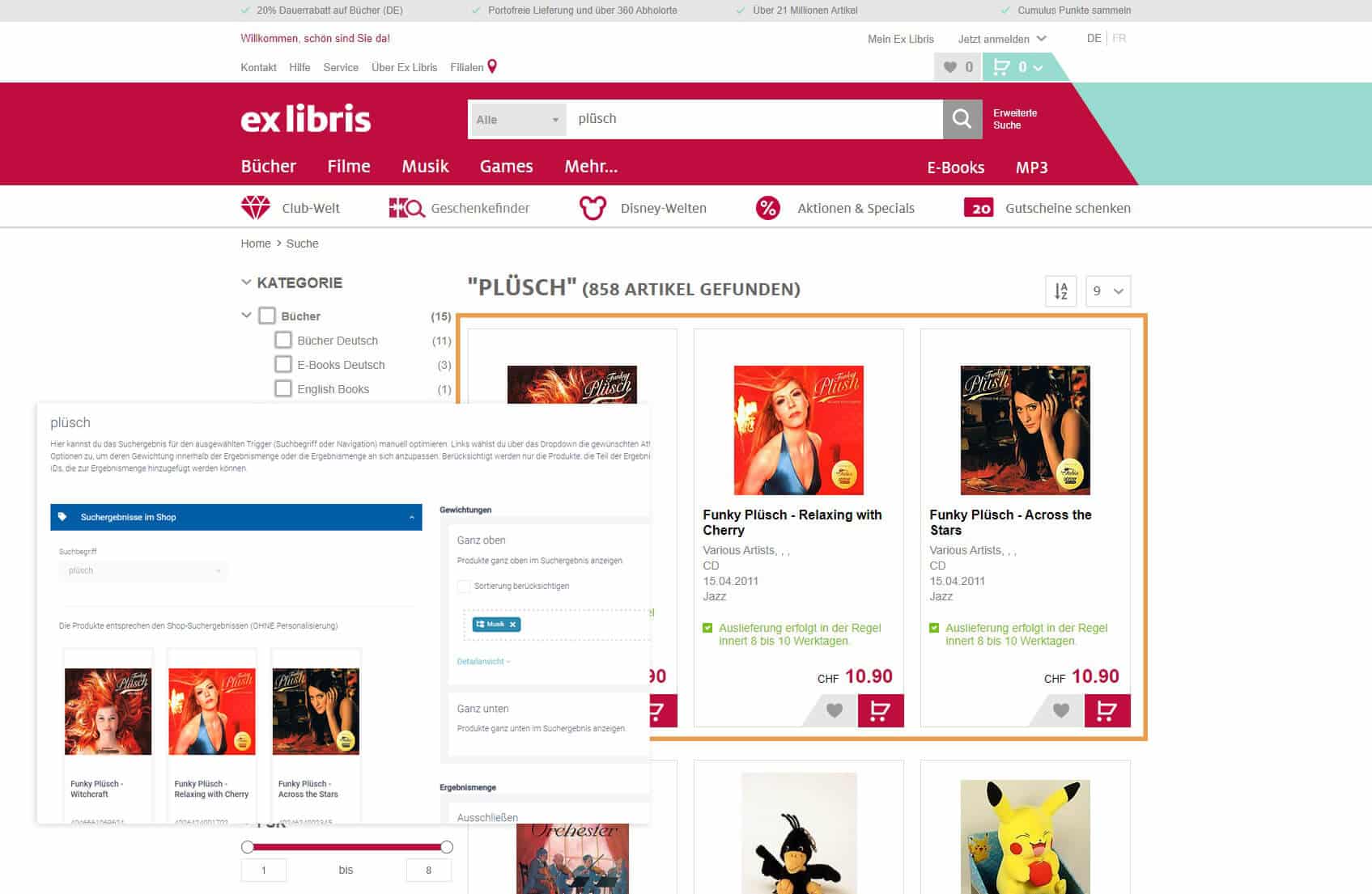
Promoting articles by the band "Plüsch" via results management
If you would like more information on editing search results, we recommend reading our blog article:Results management: How you can optimize your results even more precisely
If the conversion rate is low and the average number of results is very high, it is likely that a filter was used to further narrow down the results. In this case, a new search query is triggered and is not counted as a click. Information about clicked filters can be found in the detailed analysis of a search term.
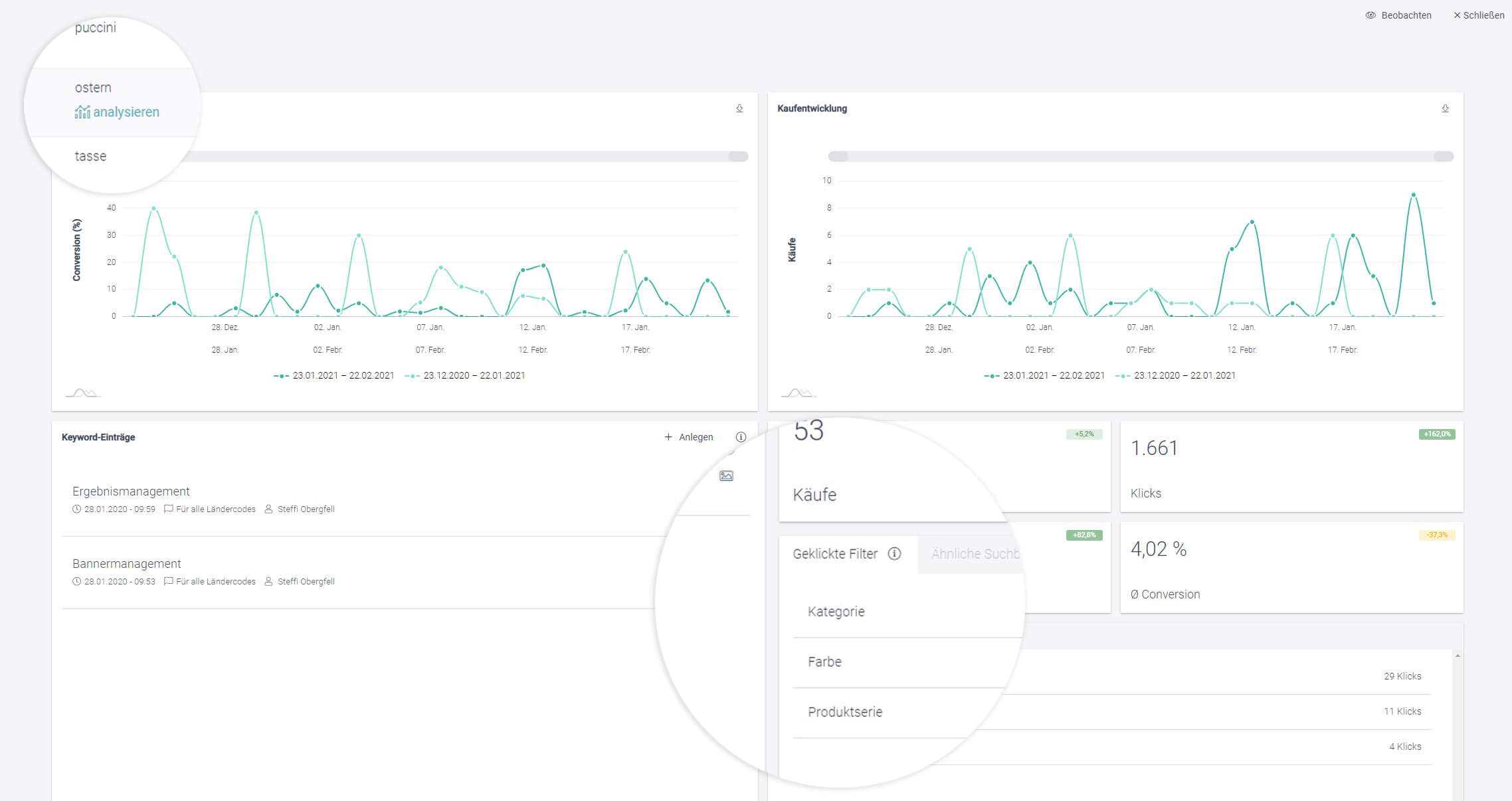
Information about clicked filters in the detailed analysis of a search term
Here you can see what your shop customers are interested in for this search query and, if necessary, optimize the results or the placement of the filters.
Analysis of the most frequently purchased search terms
The "Most Purchased Search Terms" table also contains terms that are of high interest to your customers, namely the top 500 terms for which purchases were most frequently made in your online store. With the help of this table, you can learn more about your customers' purchasing behavior, e.g., whether most purchases were made for search terms in combination with a brand name.
The most frequently purchased search terms in combination with the table filter "new" or "ascending" can help you verify the relevance of trends. If a new term already appears in the most frequently purchased search terms, it is usually worth optimizing the search results. Here, you can analyze the search results, check whether all relevant products for this term are found, and, for example, add to the product data.
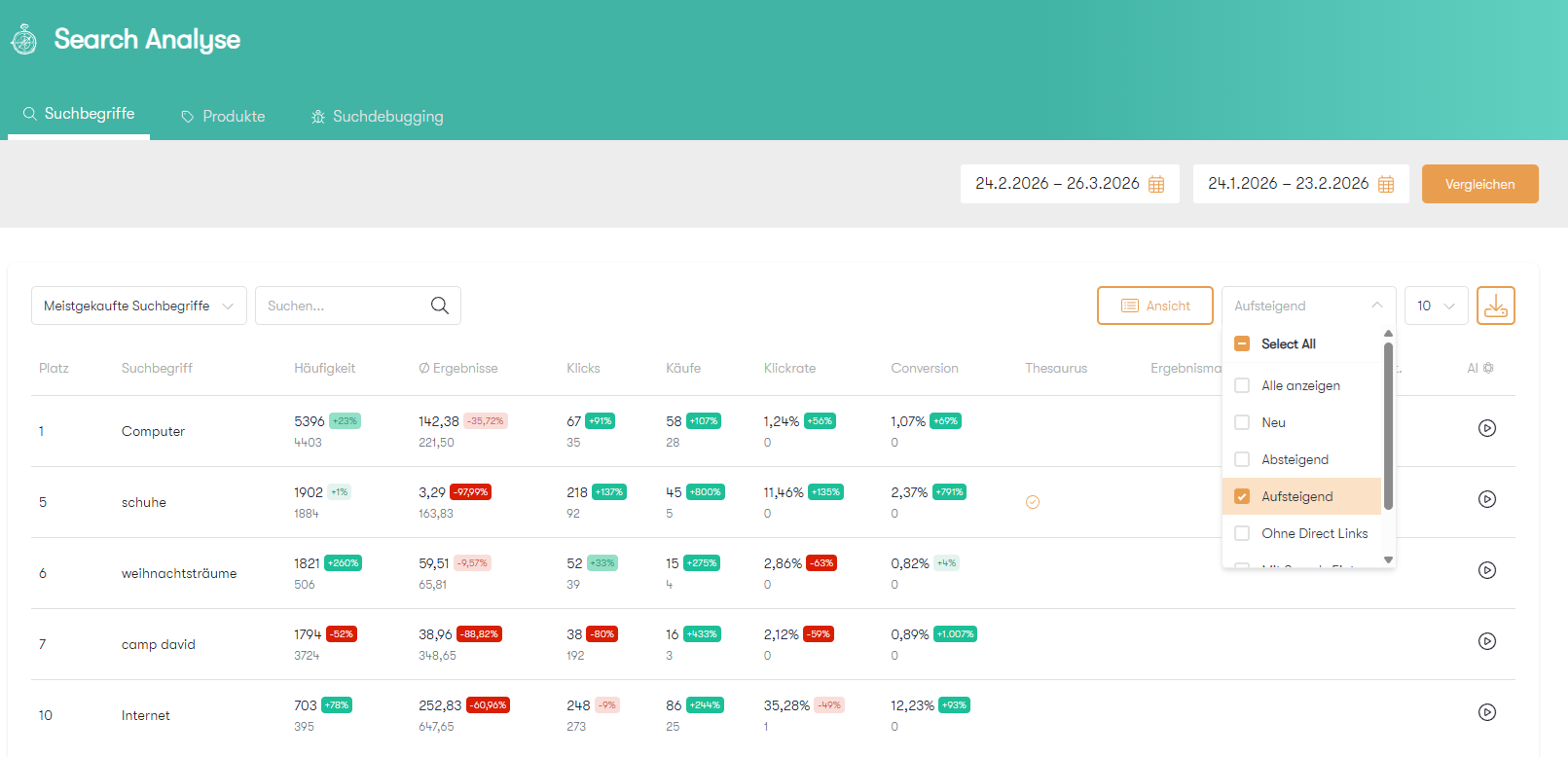
Table "Most frequently purchased search terms" with table filter
Analysis of zero-hit search terms
Zero-hit search terms are terms that have no search results in your shop during the selected period. You should take appropriate measures for these terms, otherwise your customer bounce rate will increase.
Zero-hit search terms often arise from a combination of terms commonly used in everyday language that are not included in your shop. There are various cases that may apply here.
Example 1: The product you are looking for exists in your shop, but cannot be found using the search term combination.
In your online shop for gardening supplies, there is a search term with zero results: “Greenhouse Clearance Items.” You can create a “Greenhouse Clearance Items” theme world for this and link its title to the search. Add the “Greenhouses” category and the “On Sale” attribute to this theme world. Now, when your shop customers search for “greenhouse clearance items,” the product selection from your theme world will appear. Additionally, you can set up a banner for “greenhouse clearance items” and thus create a small landing page for the zero-result search term.
Example 2: The product exists in your shop, but has a different name
In your online shop for bathroom equipment, there is a zero-hit search term "whirlpool." However, whirlpools are listed in your shop under the category "hot tubs." In this case, you can create a thesaurus entry in which you equate the term "whirlpool" with the term "hot tub." The search result will then consist of the results for "whirlpool" and "hot tub."
Example 3: The product does not exist in your shop, but you can offer an alternative
Your online store for outdoor gear includes the "no results" search term "tent." Unfortunately, you don’t carry tents in your product range. You can create a zero-result entry for the term “tent.” Design your zero-result page there with an alternative search for “camping,” a banner, and a headline reading “Unfortunately, we don’t carry tents—how about the following accessories for your camping trip?” For the search term “tent,” the shop visitor will then be directed to the customized zero-result page and shown alternative products there, even though their actual query isn’t in your product range.
Example 4: The search term comes from an external (social media) campaign and is not found natively in your shop.
For your online shop for home furnishings and lifestyle products, you have an active social media campaign called "Blossom Magic." There, you advertise floral bedding. However, the floral bedding cannot be found via the shop search for "Blossom Magic" because the term is not stored in the data. To fix this, create a theme world called "Blossom Magic" and link the title to the search. You can also choose to have the term "Blossom Magic" appear in your Type Ahead. You can also design the promotion page with a banner. Shop visitors will now be able to find your promotional products via the search function.
For more information on zero-hit pages and how you can use them to your advantage, check out the blog article Designing custom zero-hit pages with zero-hit management in Control Desk.
Analysis of search terms without clicks
The "Search terms without clicks" table contains the top 500 terms that did not generate any clicks on products in the search results during the selected period. There may be various reasons for this.
For example, the selection offered for such a search query may be too large, and your customer may therefore be unable to decide on a product.
Example:
In your online shop for garden furniture, the term "garden furniture cover" has no clicks. A detailed analysis of this search term shows that the filter "protective cover type" was frequently used for this search query. The filtering leads to a new search request, which is why further clicks are not counted for the original term. If you look at the results for "garden furniture covers" in your shop, you will also see that the results mainly show garden furniture and few covers. In your data, you can see that the desired products in your shop are called "cover" or "protective cover," for example. Using result management, you can therefore exclusively display products from the "covers and protective covers" category for the search term "garden furniture cover."
Analysis of rising and falling search terms (trends)
The analysis section offers you various options for identifying and evaluating current trends in your ecommerce search engine.
You can identify trends using the markers in the table, the table filters (ascending/descending), or the charts below. For example, they can indicate seasonal changes, model changes, or campaign run-outs.
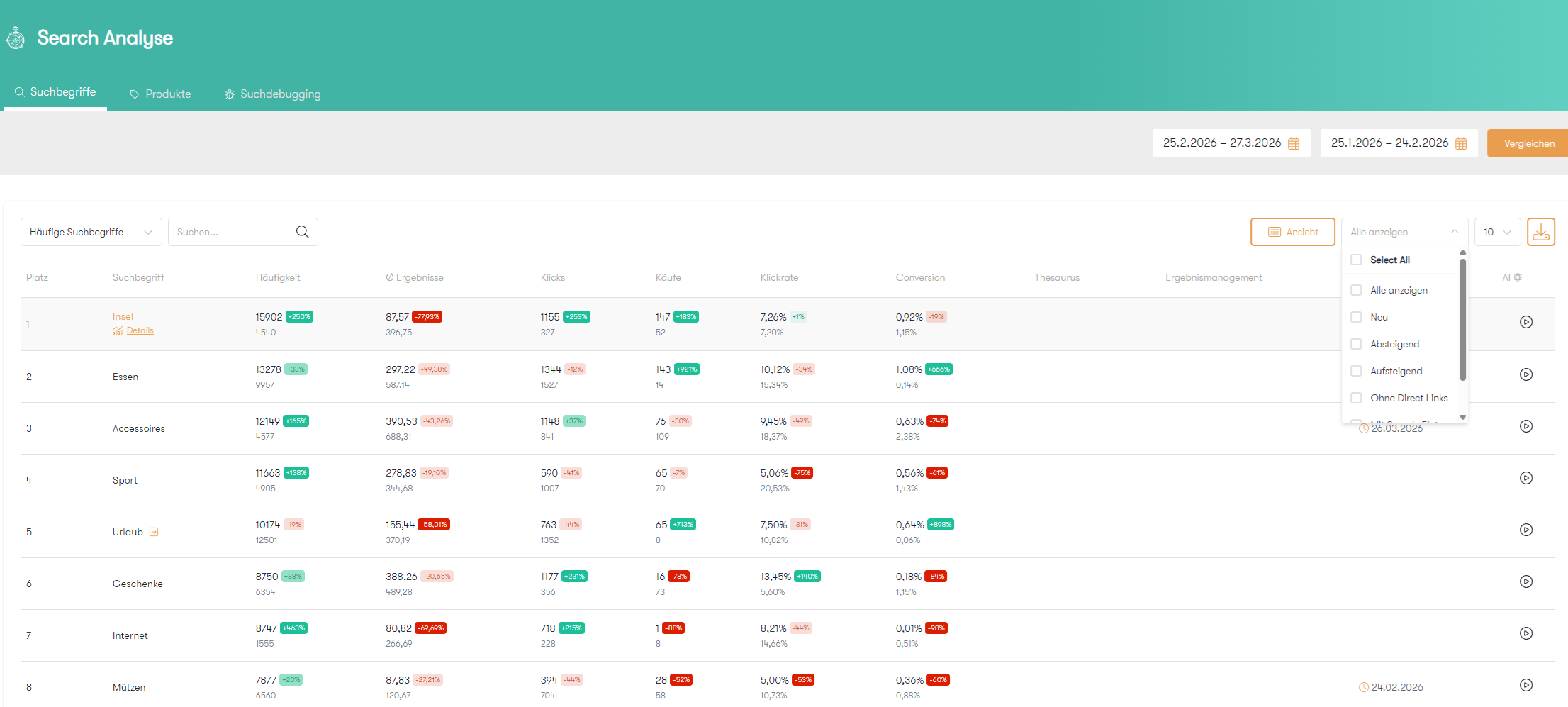
Display of trends in the analysis section of the search
Downward trends are highlighted in red in the table. A darker shade of red indicates a steeper decline, while a lighter shade indicates a shallower decline. Alternatively, you can view the “Declining Search Terms” chart to get a quick overview of the terms that have seen the biggest decline compared to the reference period.
Example 1:
You run an online store for smartphones and accessories. The new iPhone 12 has just been released. In your descending search terms, you see that searches for "iPhone 11," i.e., the previous model, are declining. Check the detailed analysis for this search term to see if there are still keyword entries that display a banner for the old iPhone or promote older accessories. You can then deactivate these and adapt them for the new iPhone.
Example 2:
You run an online shop for garden furniture. It's autumn and searches for the term "sun umbrellas" are declining. Check the detailed analysis for this search term to see if there are still keyword entries that promote seasonal items or display seasonal banners. You can then adapt these to the coming season.
Rising trends are marked in light green (slight increase) and dark green (significant increase) in the table. Alternatively, you can view the "Rising Search Terms" and "Rising Search Terms with the Most Revenue" charts to see the search terms with the largest positive change in the selected period.
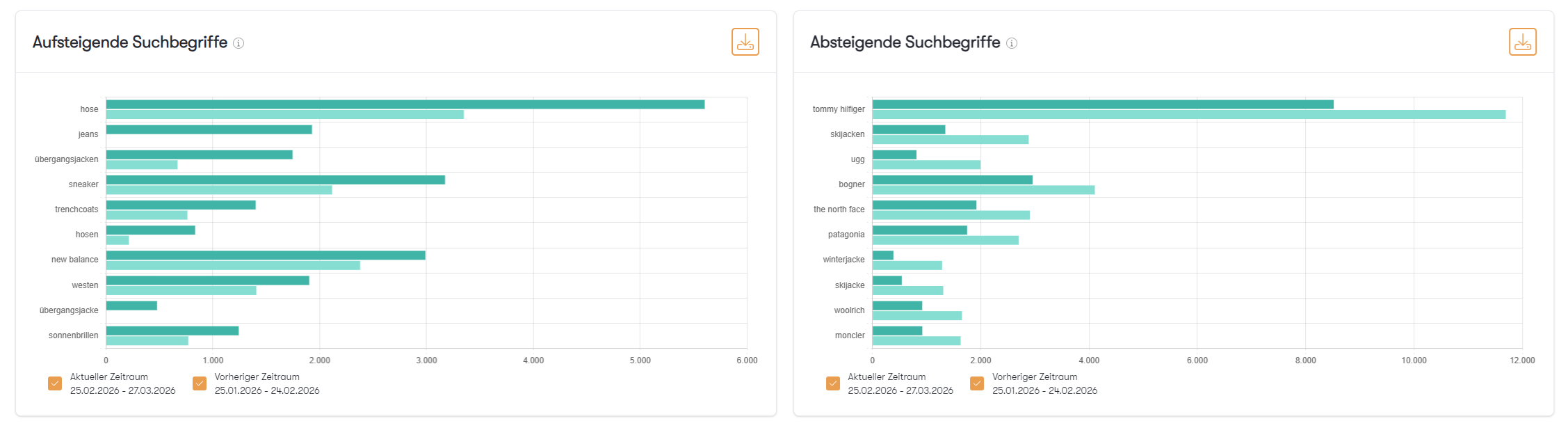
Chart showing the most and least searched terms
Analysis of the new search terms with the highest sales
With the help of the chart, which shows the new search terms with the highest sales, you can evaluate previous sales potential and identify new long-term sales potential.
If, for example, there is a brand that is frequently searched for, already generates a lot of sales, and accounts for many top-selling products, you can consider giving the brand a more prominent placement, launching a marketing campaign, or, if necessary, expanding the range of products offered by this brand.
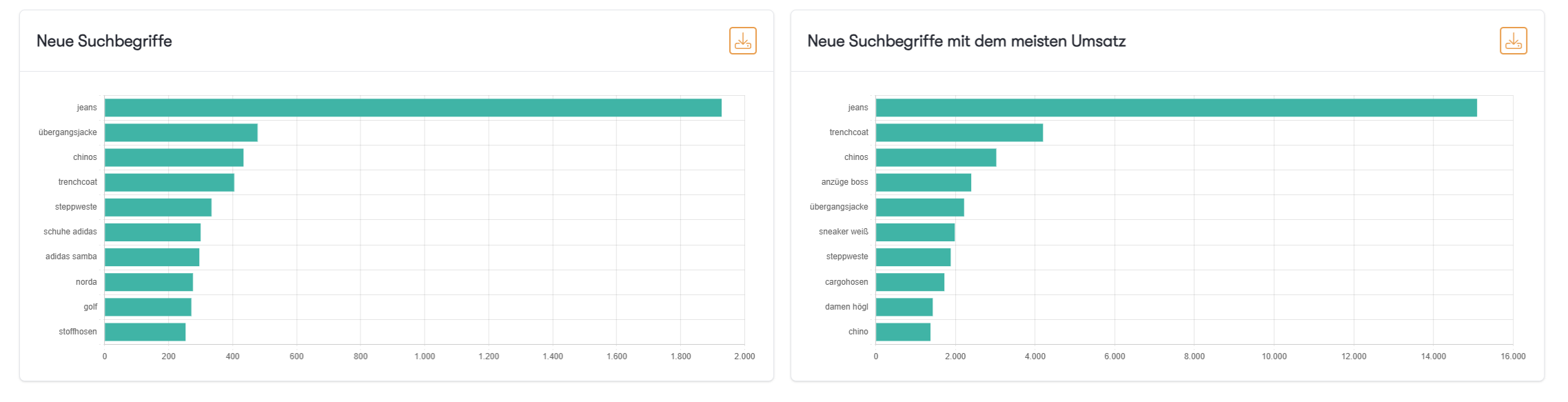
Chart showing the new search terms with the highest sales
Search terms in detail – analysis of individual terms
In this guide, we have so far looked at search terms mainly in the context of the various tables. Below, we explain which aspects you can examine closely for each individual search term.
If the conversion rate for a single search term is poor, this can be due to various factors.
For example, you may have previously set up a direct link for a term that redirects the search query directly to another page and does not display any search results. As a result, there is little or no conversion for this search term. When examining search terms with low conversion rates, you can identify the search terms with direct links directly by the small arrow icon in the table.
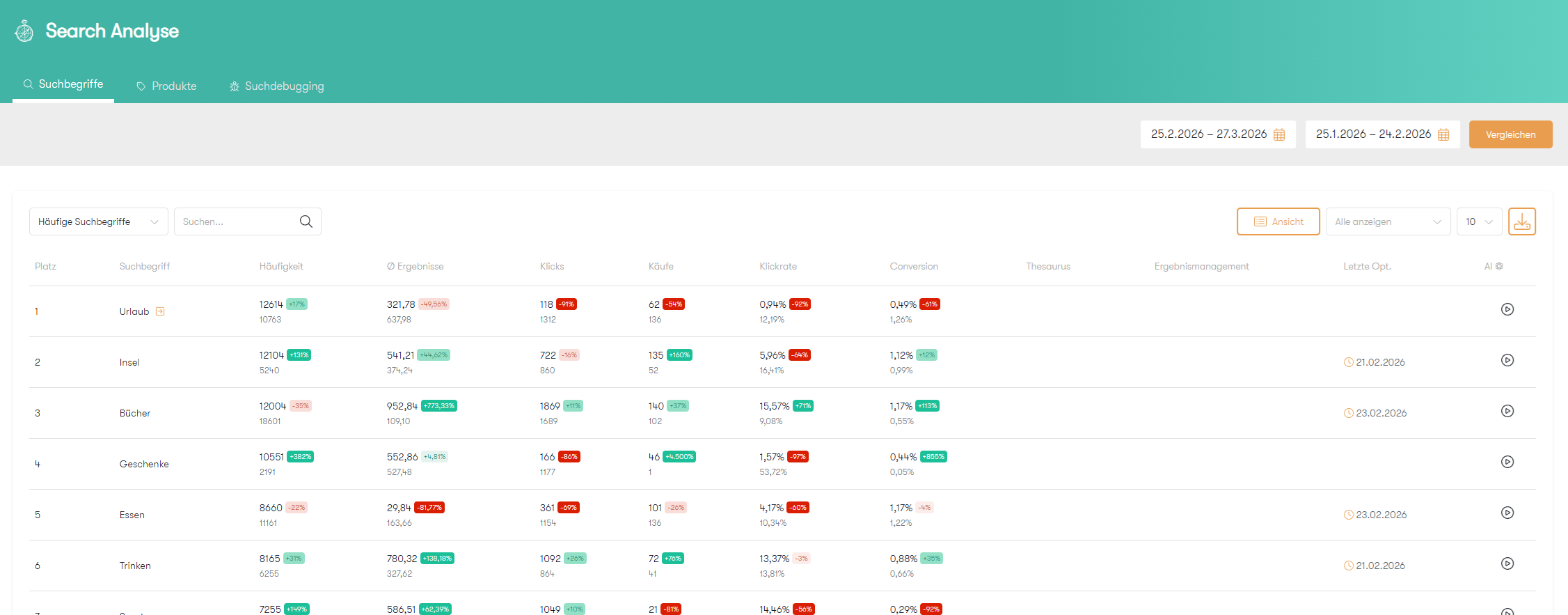
Example of a search term with a direct link
As explained at the beginning of the guide, it is also important that the search result matches the customer's expectations (see "plush toys" and the band "Plüsch"). You can use the detailed analysis to find out what the customer is actually interested in.
Example:
The search term "washing machine" does not reveal what the customer is actually interested in. If you look at the similar search terms in the detailed analysis, you can see that many customers also searched for "Bosch washing machine." This information gives you insight into which brands may be of particular interest, and you can place these products more prominently in the search results using result management or set up a banner for them. Make sure that you also set the entries for similar search terms so that the optimizations are effective there as well.
You can also view the filters that were clicked. In the "washing machine" example, the "device type" filter was clicked frequently. A look at the search results in your shop shows that many "washing machine tabs" are displayed in the search results. You can use result management to display such accessories further down.
For further conversion optimization, you can also look at brand names as search terms. The display of clicked and purchased products in the detailed analysis shows you what your shop visitors are mainly interested in for this brand. You can then adjust your product range accordingly and expand it if necessary.
Stay up to date on personalization: Sign up for the Epoq newsletter. Register now!
AI-powered optimization directly within the analysis
No matter which search term analysis list you’re currently viewing—for every search term in the analysis, you have the option to use AI to display meaningful optimization suggestions. In the AI column, you can launch the AI Optimizer. After launching the AI Optimizer, it may take a few minutes for optimization suggestions to be generated. If there are relevant optimization suggestions for the search term, they will be displayed in the AI Optimizer (Features > AI Optimizer). If no optimization suggestions for the search term appear there, none were found.
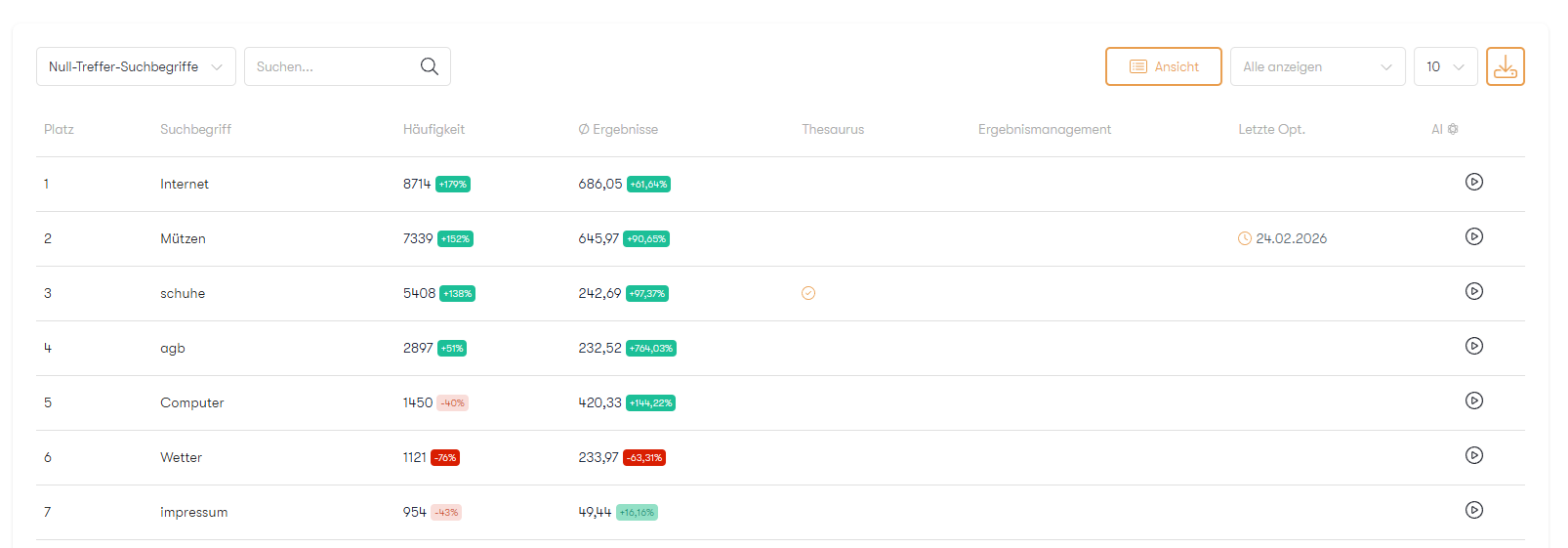
Table of search term analysis with AI optimization option in Control Desk
Want to take it a step further and skip the keyword analysis? Then you can jump right into optimization using the AI Optimizer.
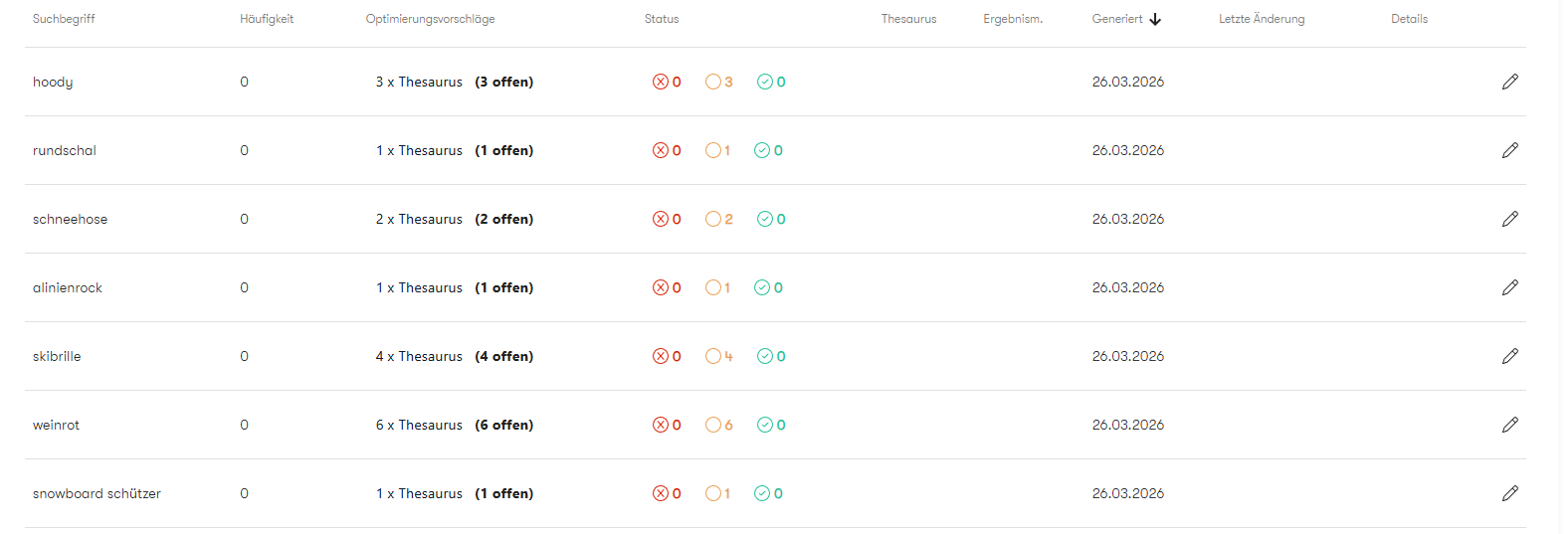
Overview of the keyword optimization suggestions generated by the AI Optimizer
For more details aboutthe AI Optimizer, check out our blog post on this feature.
Product-level analysis
In addition to search term analysis, the analysis section of the Control Desk search also provides analysis options related to products. Product-level analysis is about knowing your top sellers and finding and expanding further sales potential in your online store. The focus here is on validating current purchasing trends and dynamically and quickly adapting optimization measures. The goal here is to implement seasonal measures in a targeted manner and to strategically use particularly relevant products in your shop.
View related products
As with keyword analysis, products can be viewed in context or analyzed individually in detail. Products in context can be viewed from the perspectives of "most purchased products" and "most clicked products," which we will now take a closer look at.
Analysis of the most purchased products
The "Best-Selling Products" table shows the 50 top-selling products in your online store. These products are already performing very well, but you can still take a closer look to identify further potential. In the table, you can see which search terms were most frequently used to purchase each product. You can now check, for example, whether these terms also appear as suggestions in your search's type ahead feature.
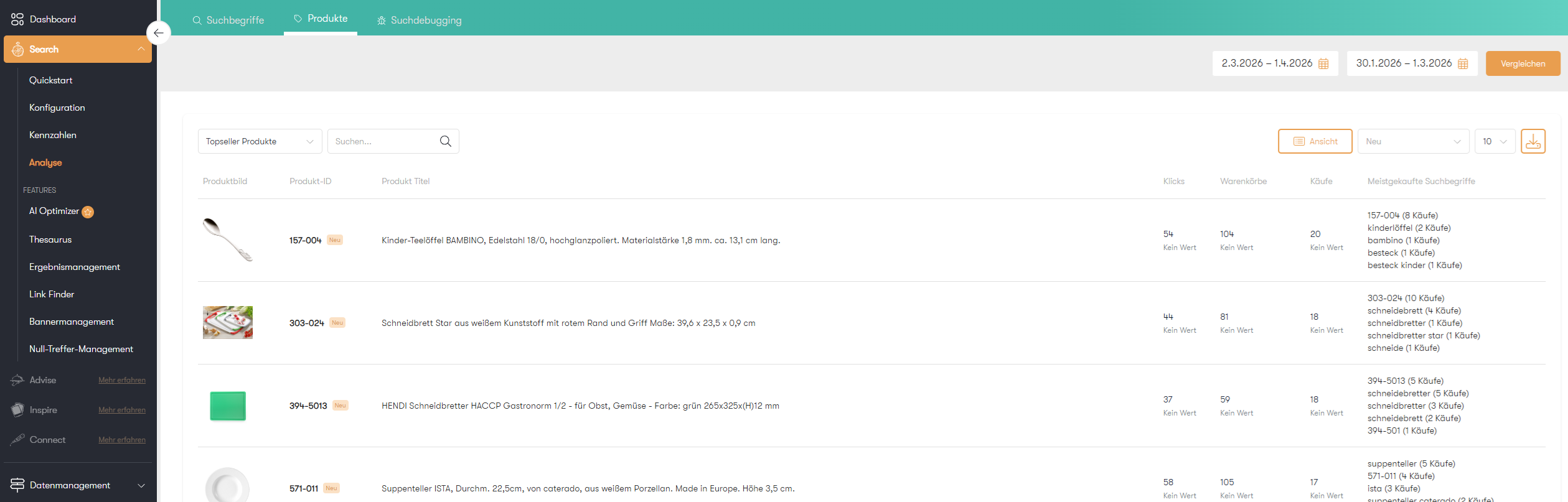
Table showing the most frequently purchased products and the corresponding search terms
Even in seasonal business, the top seller table can give you important clues about specific interests in a category.
Example:
An illuminated Christmas star is currently a top seller in your online shop. In the "most purchased search terms" for the product, you can see that it was often purchased using the general search term "lighting." As a measure, you can temporarily push seasonal Christmas items for the search term "lighting" in results management.
Another option would be to create a themed world with Christmas lighting and link it to the search. With the help of a banner entry with the trigger "lighting," you can place a link to your themed world on the search results page for the term "lighting" and highlight Christmas products in this way.
Analysis of the most clicked products
The "Most clicked products" table shows the top 50 products that have been clicked on most frequently in your shop. These products "trigger" customers the most, and you can use them to encourage a quick entry into a category by using them as category images, for example.
You can also use these products in a themed newsletter to generate the highest possible click rate and thus return traffic to your shop.
If you have products that are clicked on frequently but generate few purchases, you should analyze why they are not being bought. Check your product description—is the customer missing important information about the purchase, or is it more likely due to the price or other factors?
Products in detail – Analysis of individual products
For a better understanding of individual products in your shop, you can analyze them in detail. This way, you can find out which search terms are particularly interesting for the product and how purchases have developed over time.
Example:
In your online cosmetics store, a set consisting of shower gel, shampoo, and deodorant is often purchased using the search term "gift set." You can now use this product set in your next newsletter or your next themed campaign on the topic of "Christmas gifts" to encourage your store customers to interact.
When analyzing a product based on search terms, you can determine whether it is searched for and purchased primarily by category or by brand. This gives you insight into the intent of your store visitors.
Stay up to date on personalization: Sign up for the Epoq newsletter. Register now!
Review measures
The analysis section of the search not only offers various options for identifying which measures need to be taken, it also provides a controlling function for checking whether the optimizations implemented actually bring about an improvement or whether performance has deteriorated.
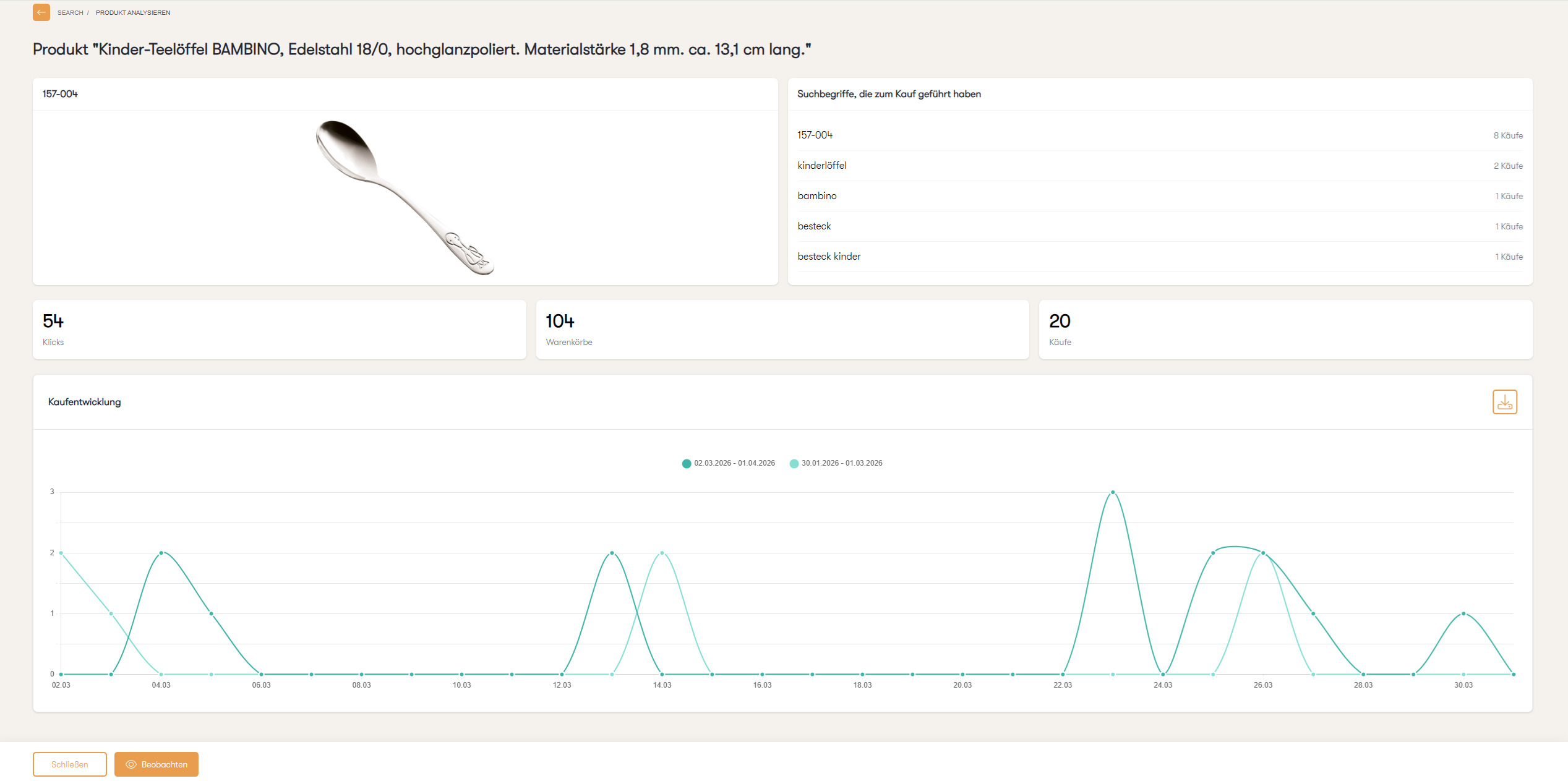
Controlling function in the analysis area of the search
Both the detailed view of the search terms and the detailed view of the individual products contain a "watch function." If you activate it, the search term or product is saved in a new table. This allows you to easily access your most recently optimized search terms/products later and examine their performance. We recommend that you check your measures regularly every 7-14 days in order to identify and respond to short-term and seasonal changes in a timely manner.
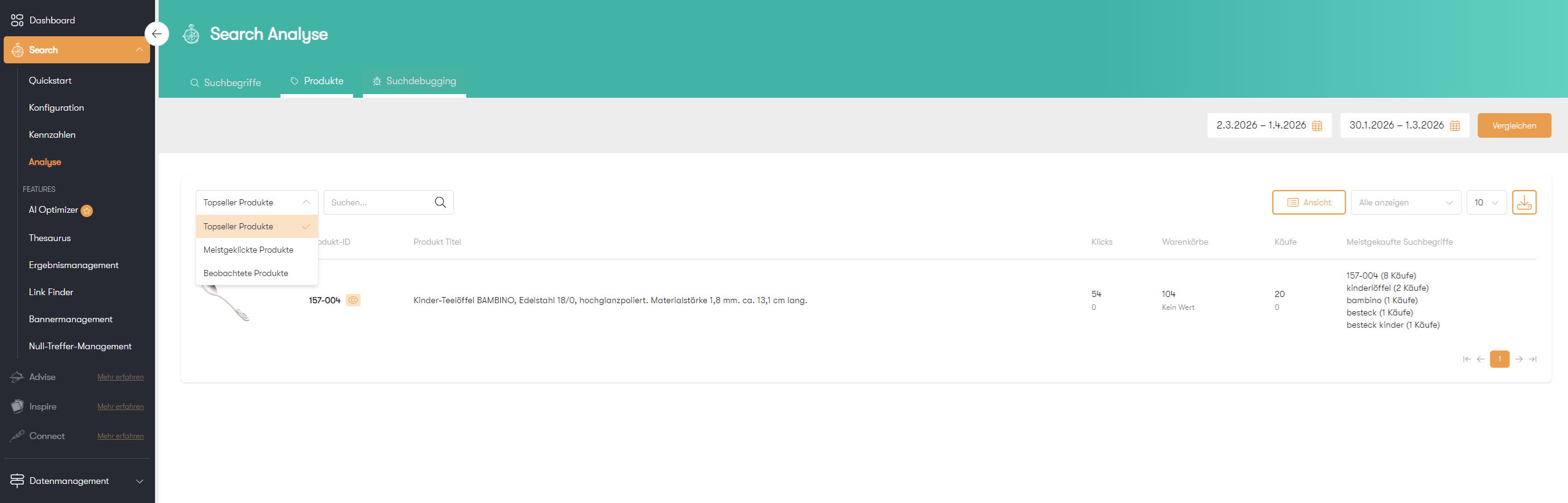
Table with observed search terms
Conclusion: Comprehensive analyses enable targeted optimizations in your online store.
The search analytics section offers you numerous ways to accurately interpret customer intent based on search queries and identify opportunities for optimization. You can use keyword analysis or perform an analysis at the product level. Thanks to AI support, you can implement identified opportunities directly from the analytics—quickly and with just one click. With targeted measures, you can fully leverage the identified potential and then track the impact of these actions. So what are you waiting for? Get started now and boost the performance of your ecommerce search engine with targeted optimizations and AI power.
Increase your personalization success
Do you have any questions or need help with optimization? Our Customer Success Team will be happy to assist you.

Log in to your Control Desk now and start optimizing.

Nadine Langendörfer
UX/UI designerYou are currently viewing placeholder content from HubSpot Embedded Content. To access the actual content, click the button below. Please note that doing so will result in data being shared with third-party providers.
More InformationYou are currently viewing placeholder content from HubSpot. To access the actual content, click the button below. Please note that doing so will result in data being shared with third-party providers.
More InformationYou are currently viewing placeholder content from HubSpot Meetings. To access the actual content, click the button below. Please note that doing so will result in data being shared with third-party providers.
More Information